


Trusted by 1M+ creators
Add SRT to MP4
Upload your SRT file and burn it permanently into your video online
No credit card required

4.6
2,100+ reviews














Add SRT subtitles to your video: Edit, style, and translate
Most platforms won't load a separate SRT file, and many viewers won't turn subtitles on themselves. Upload your video and SRT file to VEED, style your subtitles to match your brand, and export a single merged file with subtitles hardcoded permanently into the footage. No sidecar file, no player dependency, no missed captions. Works with MP4, AVI, MKV, and more — ready to post to LinkedIn, Instagram, TikTok, or anywhere soft subtitles fail to load.
How to add an SRT file to a video:
Step 01
Upload your video
Open VEED's editor. Upload your video file. MP4, AVI, MKV, MOV, and more are supported.
Step 02
Upload subtitle file
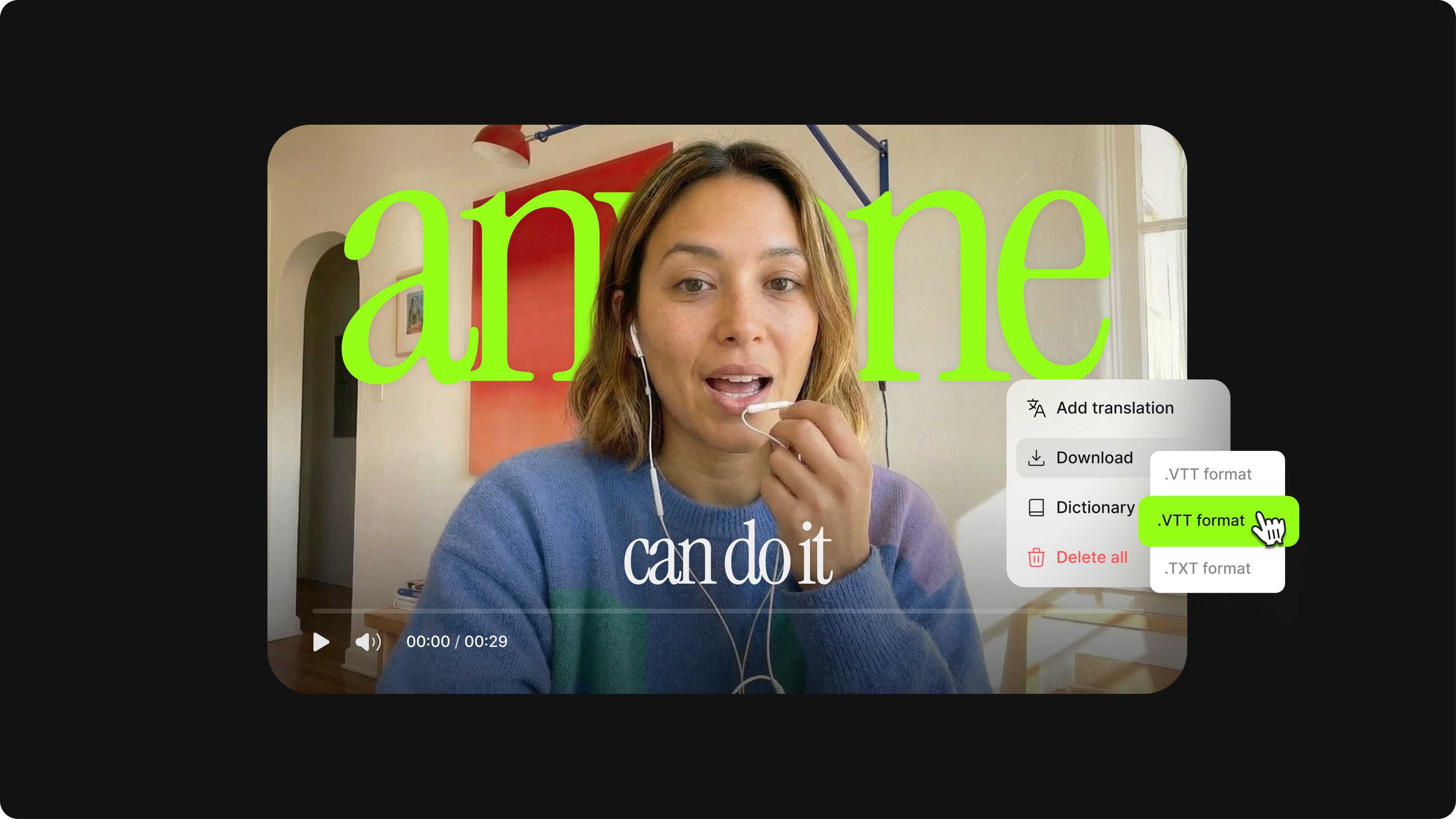
In the editor sidebar, click Subtitles. Upload Subtitles File and select your SRT file. Once uploaded, edit the subtitle text, adjust timing, and style the font, color, and position before you export.
Step 03
Burn subtitles into your video
Click ‘Done’ to export your video with hardcoded subtitles. You get a single merged file with subtitles permanently embedded — ready to upload to LinkedIn, Instagram, TikTok, or anywhere soft subtitles won't load.
Learn More
Learn how to edit SRT files with VEED:
Subtitles that are always visible
Burning subtitles into your video means they display automatically, on every device and platform, without the viewer needing to turn subtitles on. Platforms like LinkedIn, Instagram, and TikTok don't support sidecar SRT uploads. Hardcoding your subtitles is the way to guarantee they're always seen. Reach more viewers, including people watching without sound or in a second language.
Style subtitles to match your brand
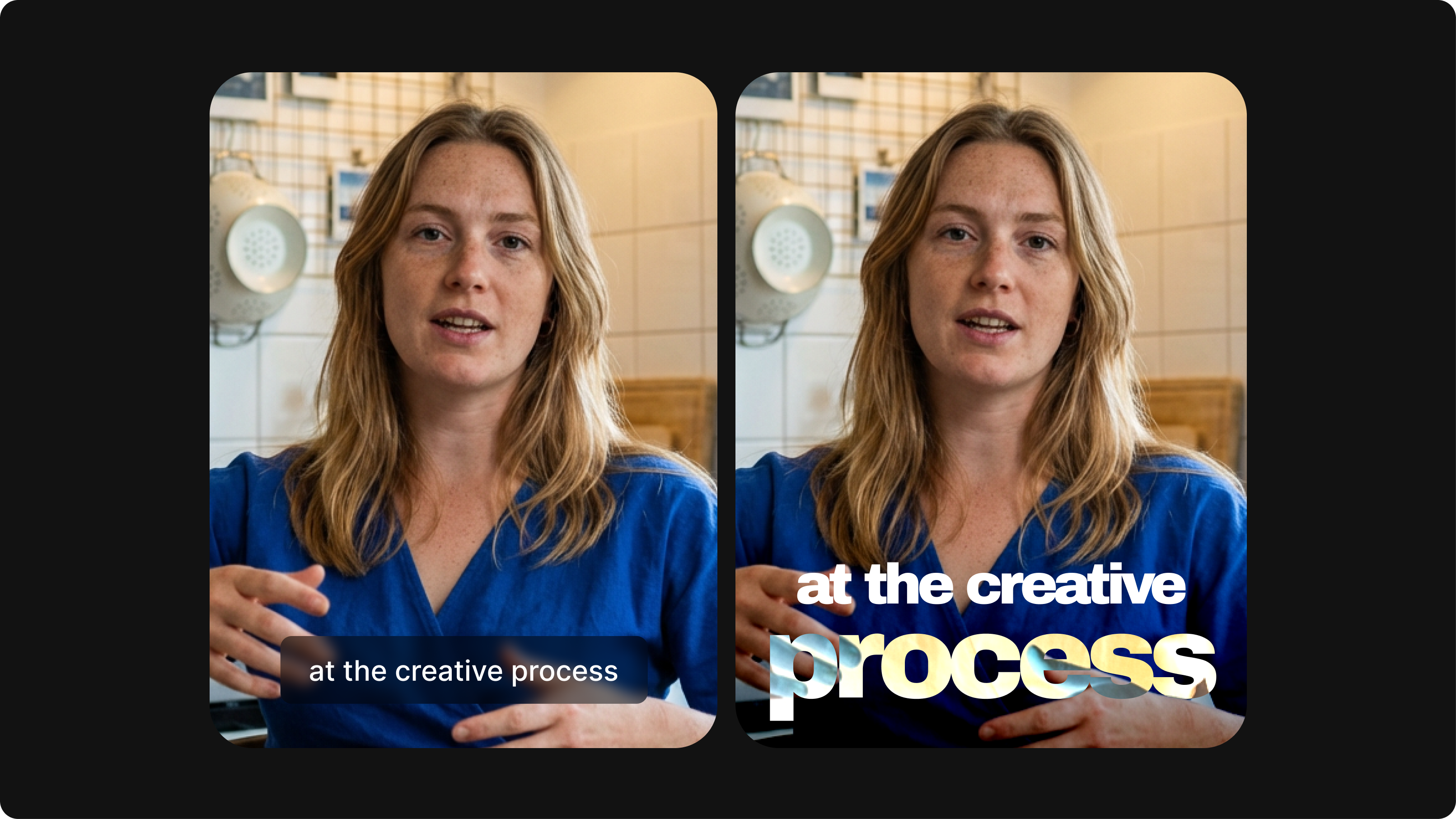
Before you export, adjust font, color, size, and position to match your brand's look. Paid plans include access to VEED's Brand Kit, where you can save custom fonts and brand colors. Apply consistent styling across every video you produce. Expanding your reach to new audiences? You can also translate your subtitles into 125+ languages directly in the editor. Style, localize, and hardcode in a single workflow, without switching tools.
Translate subtitles, expand your reach
Once your SRT file is uploaded, translate your subtitles into any language. Review the translated lines, make any adjustments, then export with the translated subtitles hardcoded into the video. Need to generate subtitles from scratch instead? Use VEED's auto subtitle generator to transcribe your video and download or burn captions.
FAQ
- Upload your MP4 to VEED.
- Go to Subtitles and select Upload Subtitle File to add your SRT.
- You can edit the text, adjust timing, and style the subtitles before you export.
VEED burns the subtitles directly into the video file. The result is a single MP4 with subtitles permanently embedded; no separate SRT file needed.
- Soft subtitles are stored as a separate file (like an SRT) that a media player loads alongside the video. Viewers can turn them on or off, but they won't show up if the player doesn't support them.
- Hardcoded subtitles are burned directly into the video itself, so they're always visible regardless of platform or player.
VEED lets you do both: permanently add subtitles to video, or download your subtitles as a separate SRT file.
Yes. Once you upload your SRT file to VEED, each subtitle line appears as an editable text box. You can fix typos, adjust timing, change the font, color, and size, and reposition subtitles on screen. All edits are applied before export, so the burned-in subtitles reflect the styling you set.
- After uploading your SRT file, select Translate from the Subtitles menu and choose your target language.
- VEED generates the translation and applies it to your subtitle track.
- Review and edit the translated lines before you export — useful for catching any terms that need manual adjustment.
Yes. Upload your MP4 to VEED and use the auto subtitle generator to transcribe the audio. Once generated, you can edit the transcript and download it as an SRT file. VEED works as both an SRT to MP4 converter and an MP4 to SRT converter.
For subtitle uploads, VEED supports SRT and VTT files. For video, it accepts MP4, AVI, MKV, MOV, WMV, and more.
If you need to add subtitles to an AVI or MKV file, the process is the same as MP4. Upload your video, upload your SRT or VTT file, and export with subtitles burned in.
Yes. If you need to process multiple videos programmatically, VEED's subtitles API lets you automate the SRT-to-MP4 workflow. Upload videos, attach subtitle files, and export hardcoded output at scale.
Loved by creators.
Loved by the Fortune 500
“
With VEED I didn't need 15 tutorials - I jumped straight in and started editing.

Gwenne Wilcox
Founder,
Brand Brainery
“
You can go beyond choppping things. VEED actually makes my videos look great.

Michael Glover
Demand Gen Manager,
ConvertFlow
“
The first four videos i created with VEED got over 40,000 impressions on LinkedIn.

Travis Tyler
Senior Content Producer,
PandaDoc
“
I found VEED at the right time: if you're making UGC ads and not using Eye Contact Correction and Noise Reduction on VEED you're missing out on ROI.

Sebastian Schurgers
Head of Growth Marketing,
Gronda
“
With VEED I didn't need 15 tutorials - I jumped straight in and started editing.
Gwenne Wilcox
Founder,
Brand Brainery
“
You can go beyond choppping things. VEED actually makes my videos look great.
Michael Glover
Demand Gen Manager,
ConvertFlow
“
The first four videos i created with VEED got over 40,000 impressions on LinkedIn.
Travis Tyler
Senior Content Producer,
PandaDoc
“
I found VEED at the right time: if you're making UGC ads and not using Eye Contact Correction and Noise Reduction on VEED you're missing out on ROI.
Sebastian Schurgers
Head of Growth Marketing,
Gronda
“
The first four videos i created with VEED got over 40,000 impressions on LinkedIn.
Travis Tyler
Senior Content Producer,
PandaDoc
“
I found VEED at the right time: if you're making UGC ads and not using Eye Contact Correction and Noise Reduction on VEED you're missing out on ROI.
Sebastian Schurgers
Head of Growth Marketing,
Gronda
“
With VEED I didn't need 15 tutorials - I jumped straight in and started editing.
Gwenne Wilcox
Founder,
Brand Brainery
“
You can go beyond choppping things. VEED actually makes my videos look great.
Michael Glover
Demand Gen Manager,
ConvertFlow
Discover more
Explore related tools
More from VEED
What is an SRT File? How to Create & Upload SRT Files [Complete Guide]
This article covers how to create an SRT subtitle file from video, audio, or text
Closed Captioning VS Subtitles: Differences & When to Use Them
Understand what differentiates subtitles and closed captioning and how to add them to your own videos with ease.

How to Download SRT Subtitle Files Online (Quick and Easy)
Want to bump up your engagement, improve video SEO, and make your content more inclusive? Here's how to download and upload SRT files for your next video!
Trusted by 1M+ creators
When it comes to amazing videos, all you need is VEED
No credit card required
More than an SRT to MP4 merger
VEED is an AI video creation platform that lets you produce polished, on-brand social videos at scale. Burn subtitles, resize videos, and repurpose content all in one workflow. Localize videos and expand your reach with AI dubbing. Move from idea to post-ready video in minutes. Sign up now to get started.