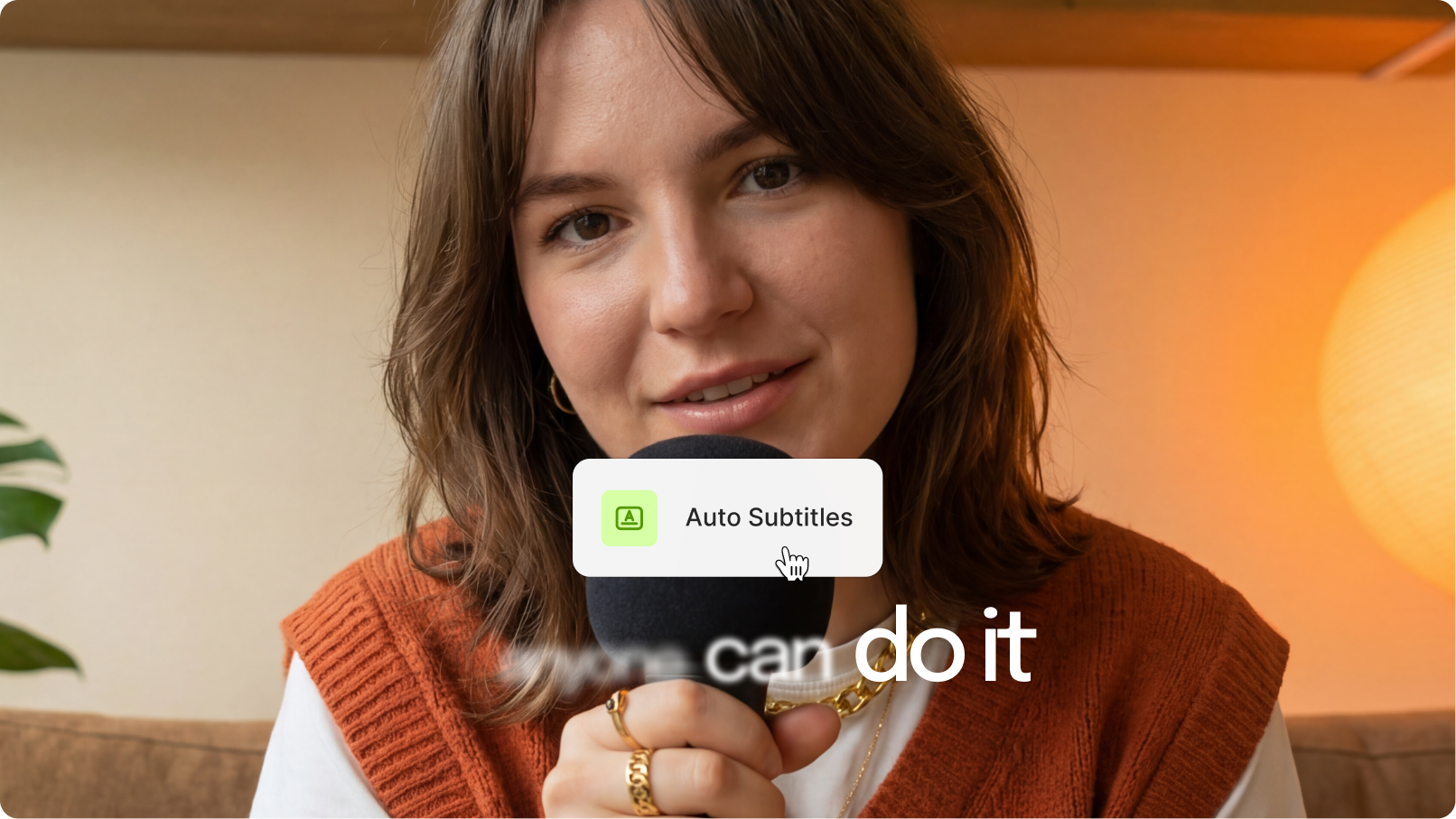
Hardcoded subtitles improve video engagement and accessibility. They’re especially valuable for viewers with ADHD, autism, or hearing impairment, and for the 70%+ who watch with the sound off.
Unlike closed captions, hardcoded subtitles play without relying on subtitle plugins or uploading an SRT file.
Meaning: these subtitles are burned into the video, so they can’t be removed, and they show up no matter the player or platform.
Here’s a quick step-by-step summary explaining how to embed subtitles into video, followed by the details:
- 1. Go to VEED and upload your video
- 2. Click on Subtitles, then Auto Subtitle
- 3. Export and download your video with subtitles burned in
Key takeaways
- Hardcoded (burned-in) subtitles are permanently part of the video file — they show on every player, every platform, with no SRT needed.
- VEED auto-generates accurate subtitles in seconds, then lets you style, split, merge, and translate them in the same editor.
- Burning in captions is the only reliable way to caption Instagram, TikTok, and Snapchat videos — those platforms don’t accept SRT uploads.
- For automated, programmatic captioning at scale, VEED’s Subtitles API starts at $0.10/min (Standard, Basic) with simple per-minute pricing.
- Use high-contrast, readable fonts (Arial, Helvetica, Roboto) and keep lines short for legibility on mobile feeds.

Want to go more in-depth, here's what we'll dig into:
- What are hardcoded subtitles and why do they matter
- How to add (and edit) hardcoded subtitles with VEED
- Best practices to format your hardcoded subtitles
[#TOC1]What are hardcoded subtitles and why do they matter[#TOC1]
A hardcoded subtitle is a caption or line of text that transcribes what the video says, playing without relying on subtitle plugins or uploading an SRT file.
What is an SRT file?
Files with .SRT or SubRip Subtitle file are plain video text files that contain a video’s subtitle information such as the sequential subtitles and time codes of the text so they match the audio. Here’s more on how to create a SRT file for your videos.
Unlike closed captions, these captions are burned into or merged with video images so no one can remove them once you’ve added them.
On platforms like YouTube, viewers can typically toggle captions on and off when the option is available.
On Instagram, TikTok, and Snapchat, though, none of those platforms accept SRT uploads. Viewers go without captions unless the creator burned them into the video.
Both Instagram and TikTok have rolled out auto-caption stickers and on-platform captions, but they come with limits — restricted fonts, basic styling, and limited control over placement and timing.
With Instagram Stories, the closed-caption stickers offer a few font and color options, and that’s about it.
That’s a problem for creators.
Because 83% of people watch videos with the sound turned off, and 70% of folks watch on mute in public. 25% do the same in a private setting.
Translation: without subtitles, your videos won’t earn the engagement they should. The same research found that 80% of consumers are more likely to watch a video to completion when it has captions.
That’s why hardcoded subtitles work. They don’t need an SRT file or a player that supports captions — they’re part of the video itself, ready to play wherever it’s posted.
So why does adding subtitles matter?
Hardcoded subtitles improve viewer experience and grow engagement. Here’s the breakdown:
- Subtitles play for everyone, regardless of player settings. Whether your audience is on YouTube or TikTok, they can watch captioned videos without enabling anything.
- Better video engagement. Platforms that don’t accept SRT files (like Instagram) leave you no choice — burned-in captions are the only way. More viewers stay longer, and watch time signals more reach.
- Perfect sync between video and subtitles. SRT files rely on the player to decode and sync. Some players, devices, and websites either don’t support softcoded subtitles or display them out of sync. Hardcoded subtitles play in lockstep with the audio, every time.
- Wider video accessibility. Burned-in subtitles open your content to viewers with ADHD, autism, or hearing impairment — regardless of which player or platform they’re on. Captions can improve information retention and focus for people with ADHD and autism, and they help any viewer learn or follow along better.
Working with TikTok? Here’s a step-by-step guide to TikTok subtitles that walks through the platform-specific approach.
Pro tip: Translate your videos using VEED’s video translator to reach viewers in 125+ languages — a fast way to expand engagement without rebuilding the video.
[#TOC2]How to hardcode subtitles online with VEED[#TOC2]
VEED is the AI video creation platform built to grow your brand on social — and that includes a fast, accurate way to burn subtitles into your videos.
It also makes editing, styling, and resizing the video for any platform part of the same workflow, so you’re not stitching tools together.
Follow these 5 steps:
1. Upload your video to VEED
Head to veeed.premiumtool.shop and upload your video.
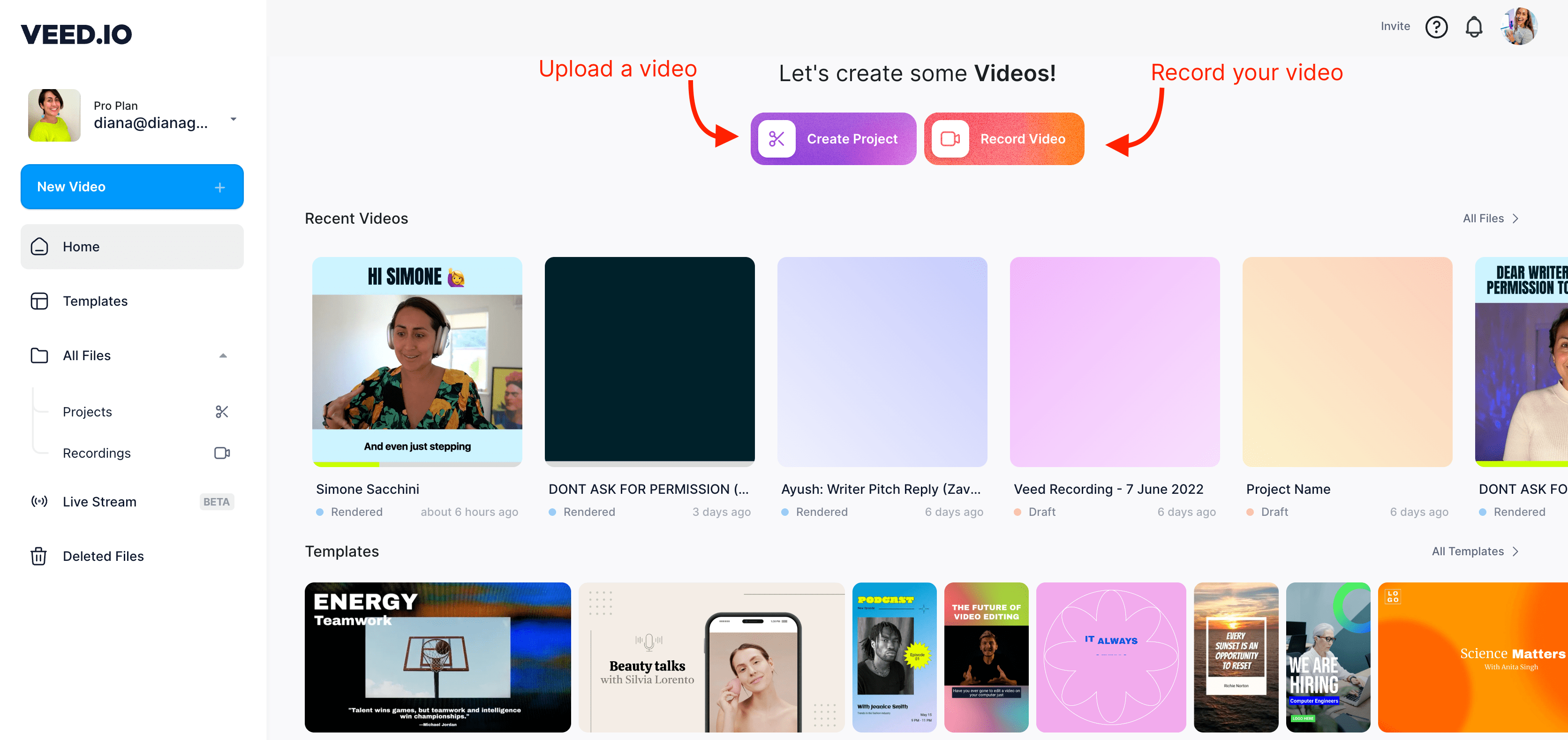
You can upload any popular video file such as .MP4 .MOV .AVI.
Plus, you’ve the option to upload your videos from your:
- Camera
- Dropbox
- Personal folder
- Device (phone, tablet, laptop, or desktop)
The best part? You can directly upload videos from YouTube using just the video link (URL). This makes repurposing YouTube videos into shorter, subtitled clips a breeze.
If you don’t have a video yet, you can use a video template from VEED’s template gallery.
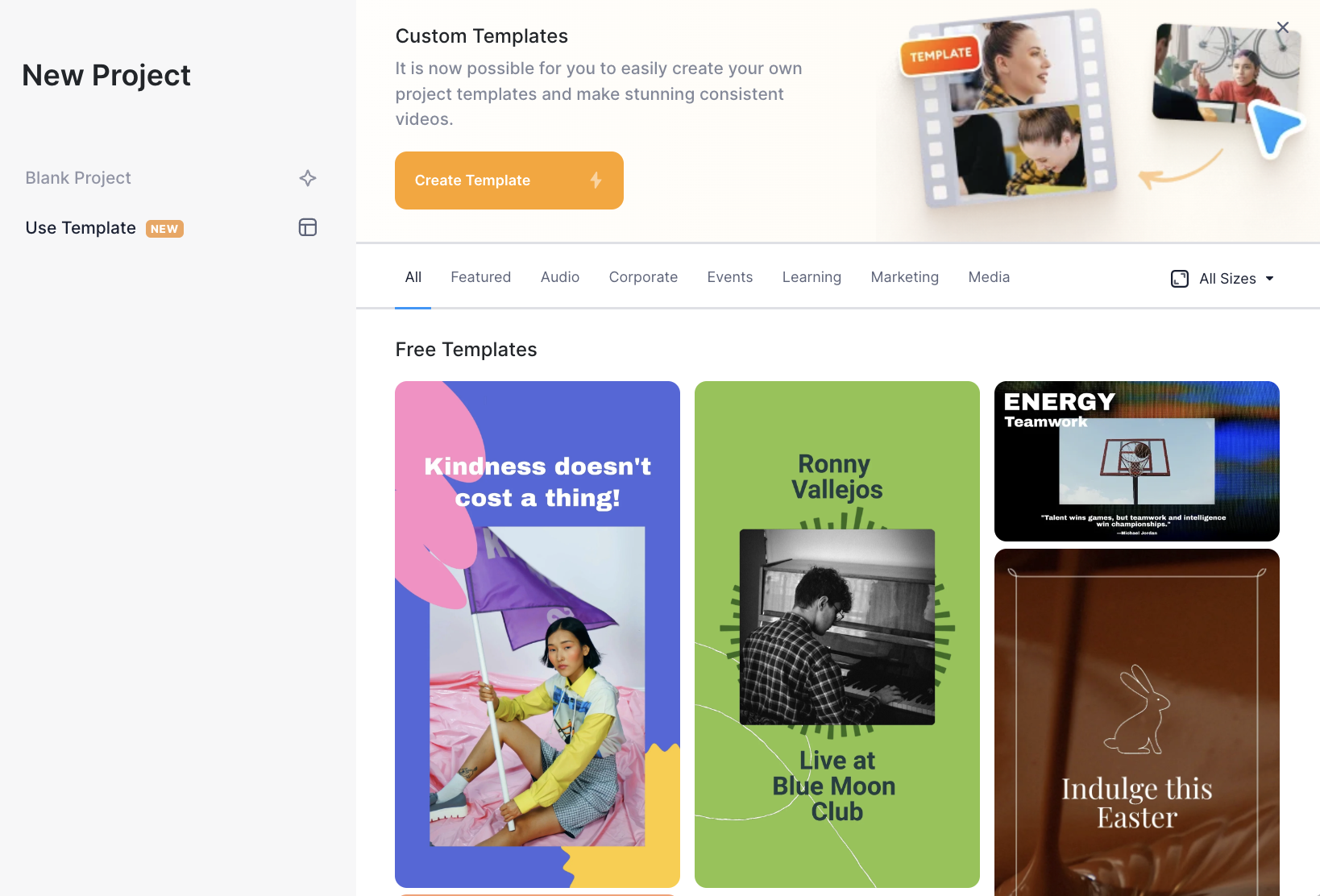
All you’ll need to do is to tweak the text and colors in the video template and your video will be ready within minutes.
2. Click on subtitles and then select a subtitling option
Next, click on the Subtitles tab in the editor’s left toolbar to reveal the three options to add subtitles with VEED:
- Automatically add subtitles to your video
- Manually add subtitles to your video
- Upload an SRT file for tracing video’s subtitles
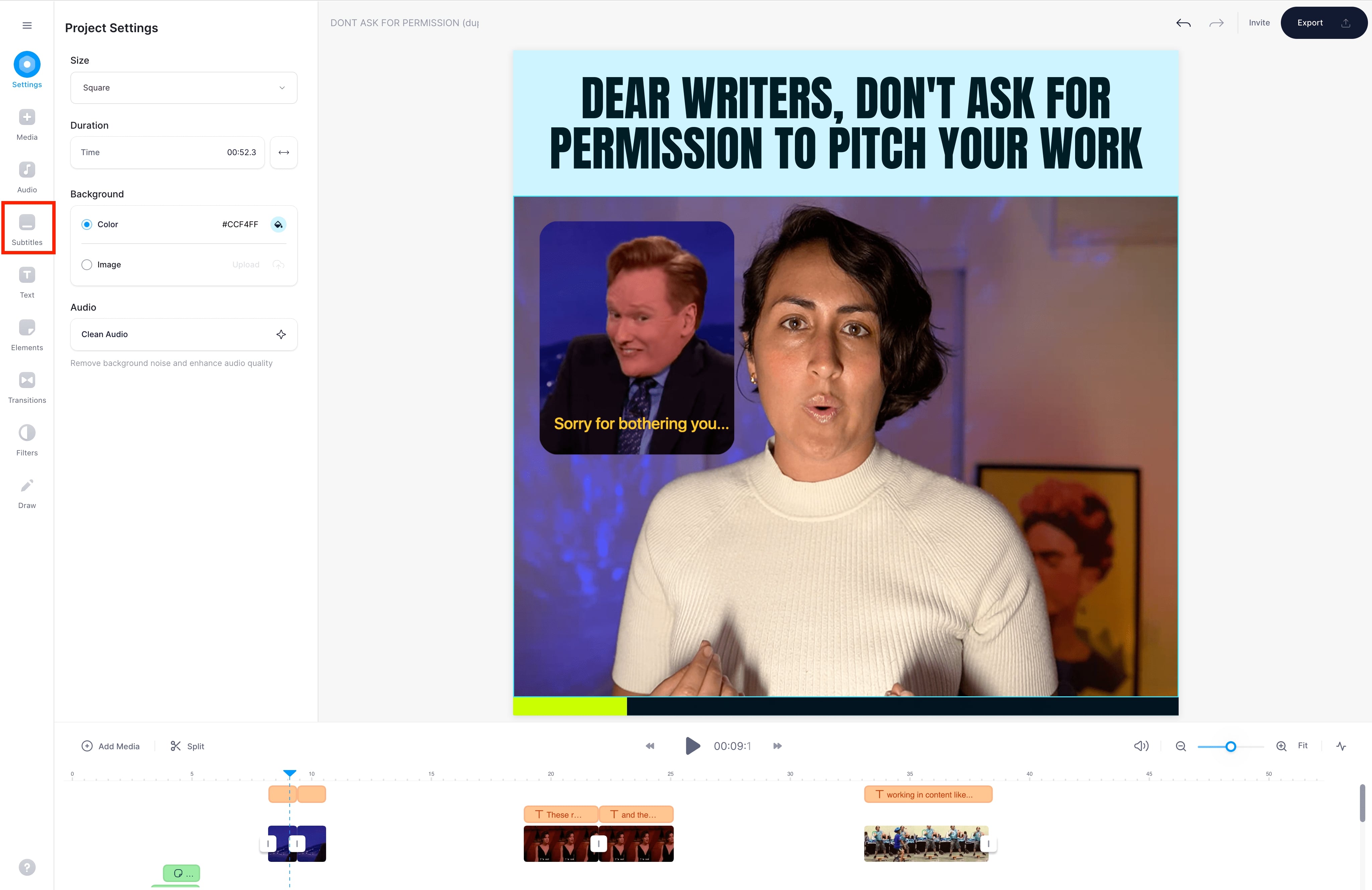
Choose whichever option suits you.
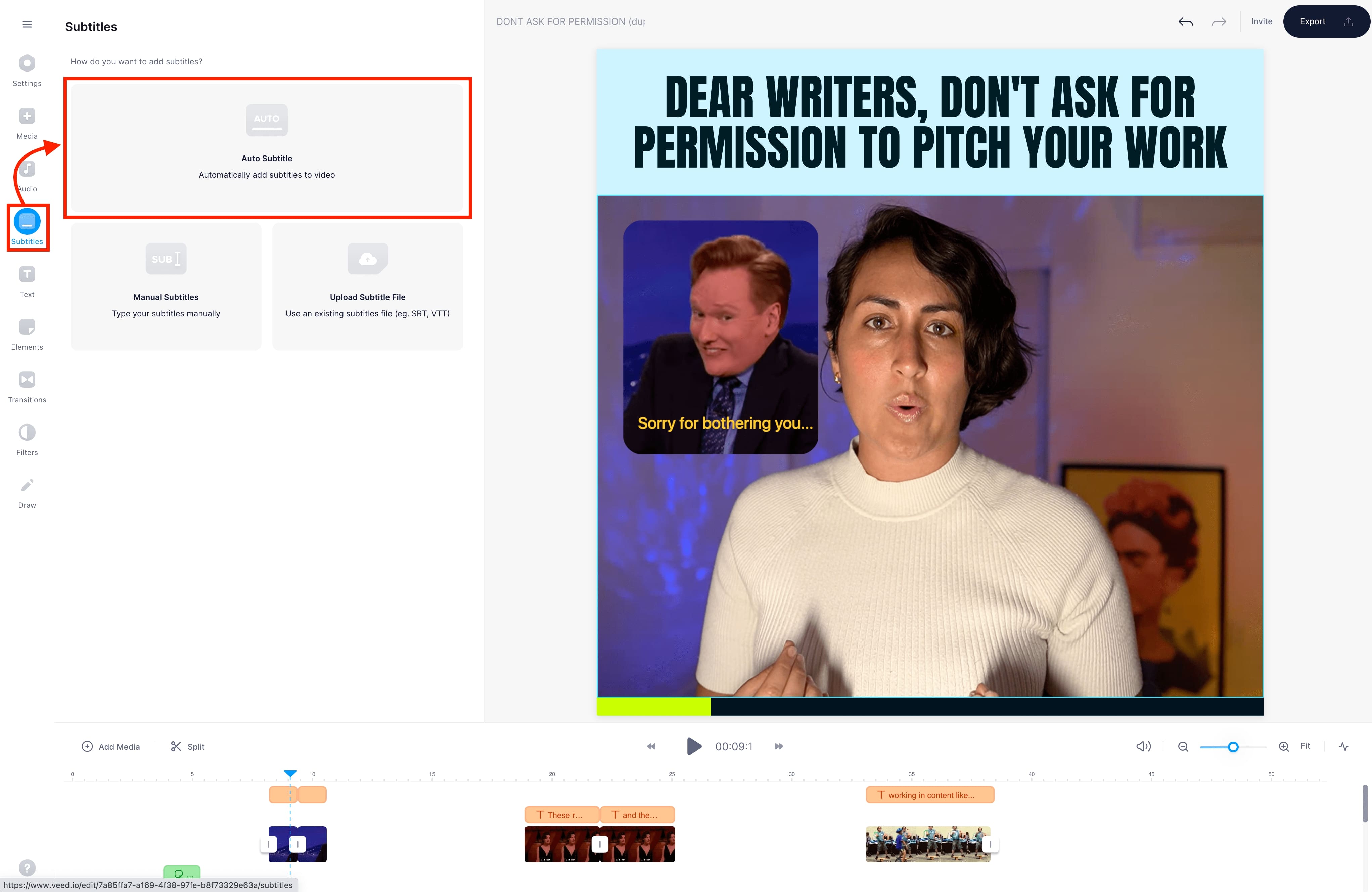
Keep in mind though: if you don’t have an SRT file ready, VEED’s auto-subtitles are the fastest option to add subtitles to your video as it uses AI to automagically generate captions. It then renders them permanently into the video. Alternatively, you can download the subtitles as a separate file (SRT, VTT, TXT, etc.).
3. Spellcheck and customize your subtitle
Mistakes in the subtitle text are common — whether it’s AI that generates them or you add them manually. So it’s important to take the time here to proofread the subtitle copy.
Next, format the subtitles. A few ways to do this:
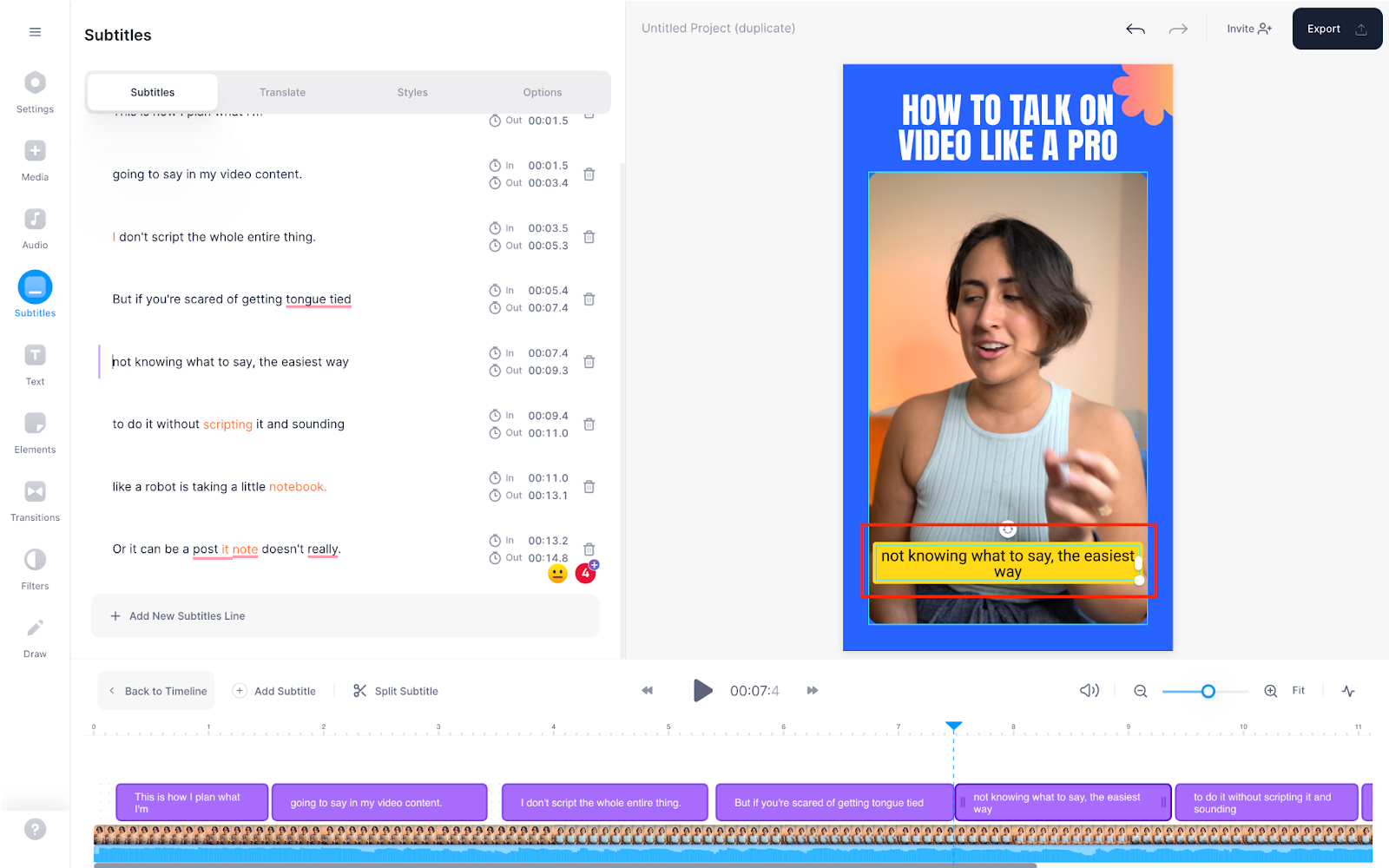
- Split long subtitle lines to make them easy to consume
Within your VEED editor, click on the subtitles in the video to open the subtitles copy on the side. Now, spot a line you want to split:
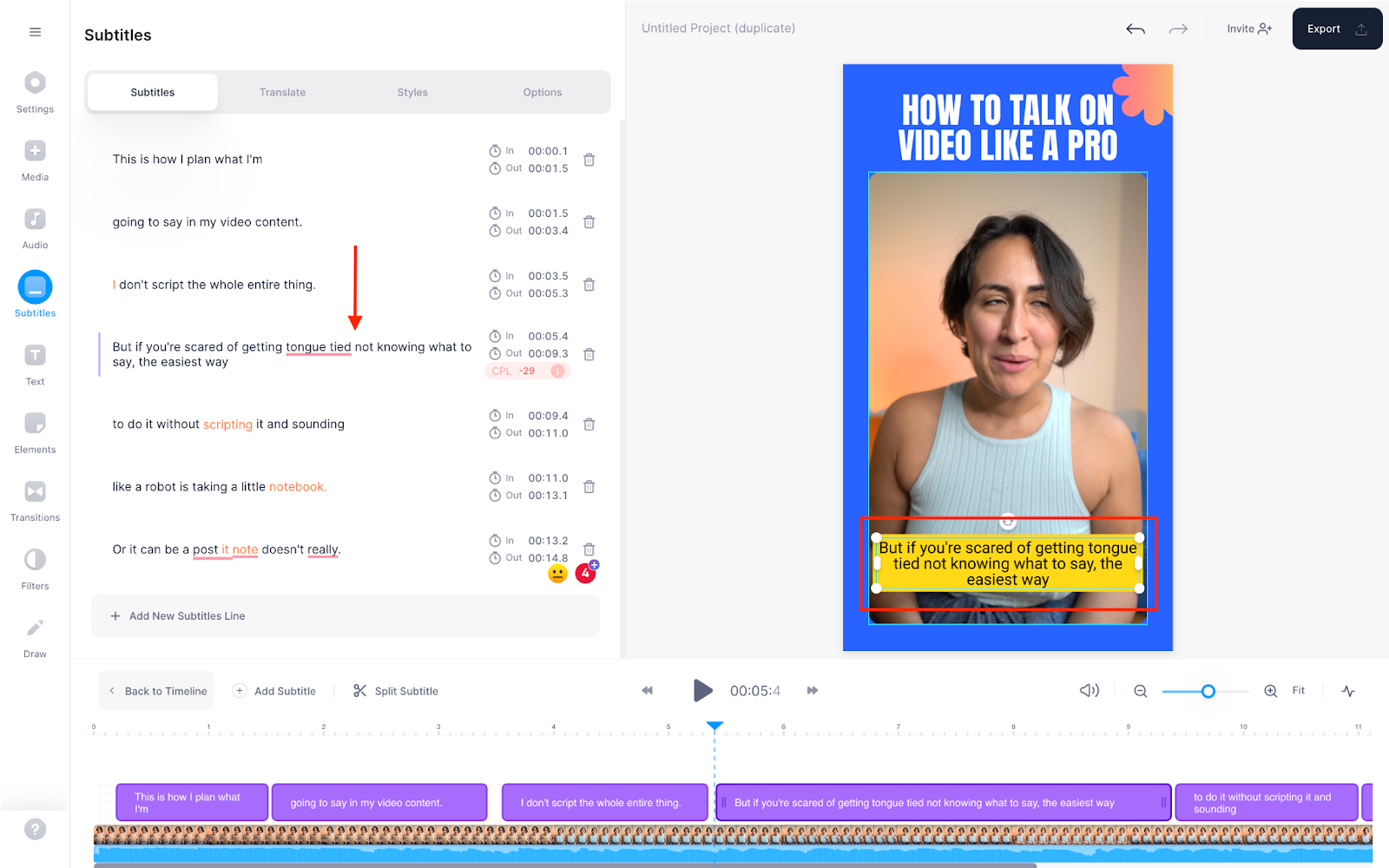
And, hit the enter key to split the caption.
Simple 👏as 👏 that 👏
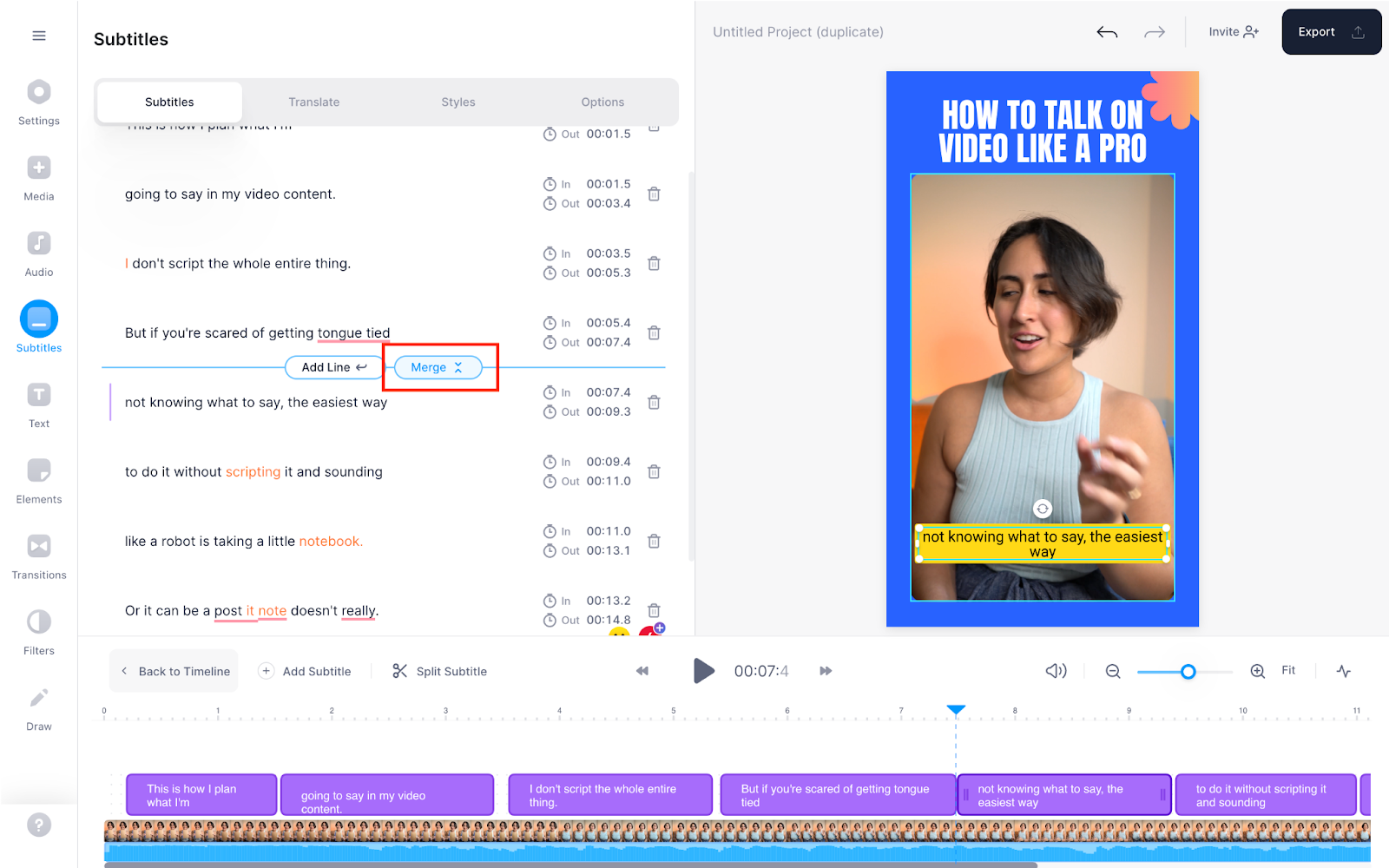
- Combine or merge short subtitle lines to improve readability
To do so, hover your mouse between two subtitle lines. This’ll show the merge button — click it to combine two subtitle lines.
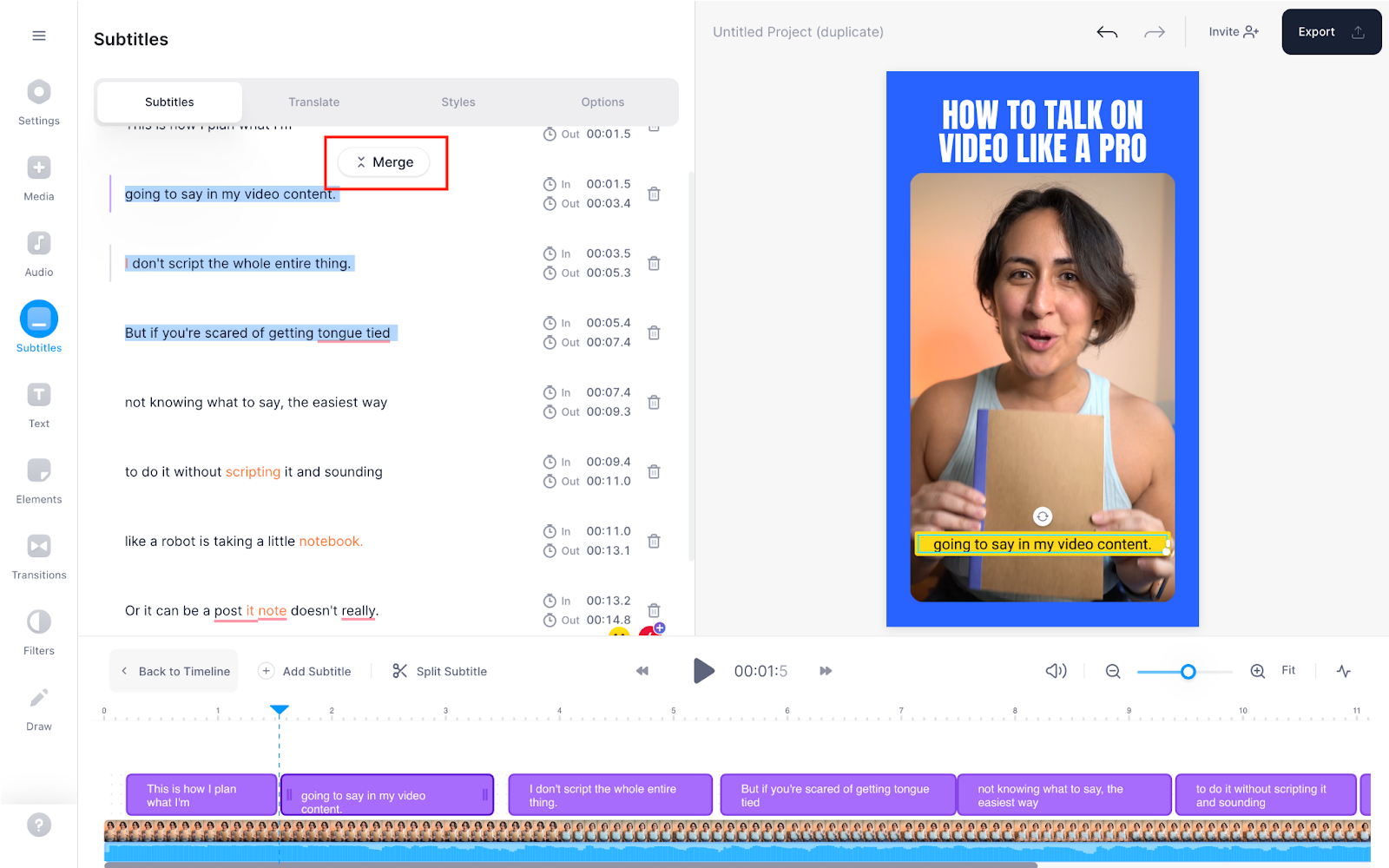
- Merge three or more subtitle lines into one grouping
Lastly, if you want to group multiple subtitle lines, select the text to reveal the merge option. Click it and you’re done.
And finally, to spruce up your subtitle text’s look, head to Styles in the Subtitles section.
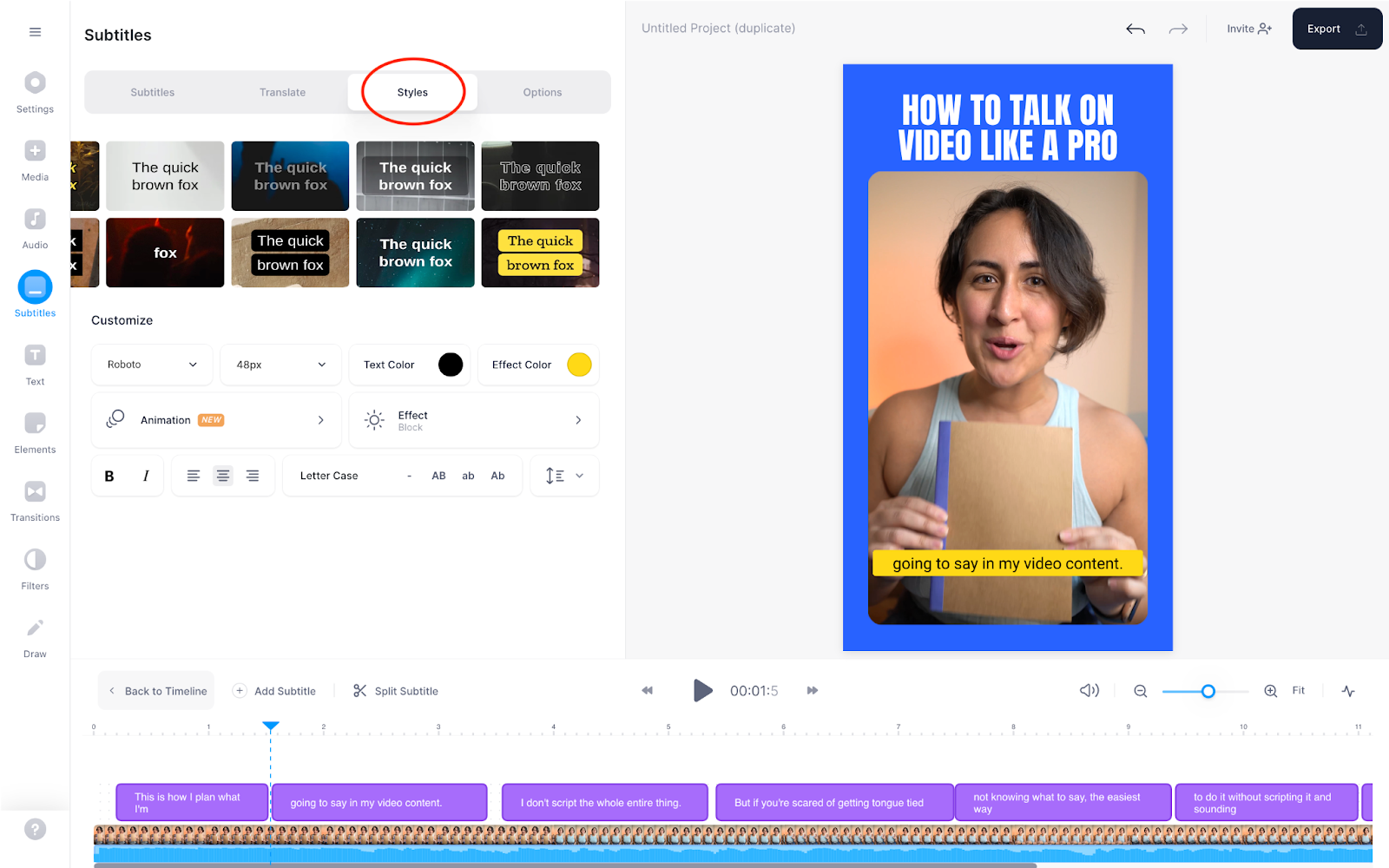
Here you can play with your font type, font size, color, text position, and line and letter spacing among other options. You can also add branded or custom fonts if you prefer.
P.S. Animated subtitles are coming soon!
One last thing: you can also add subtitles in a different language using the Translate option.
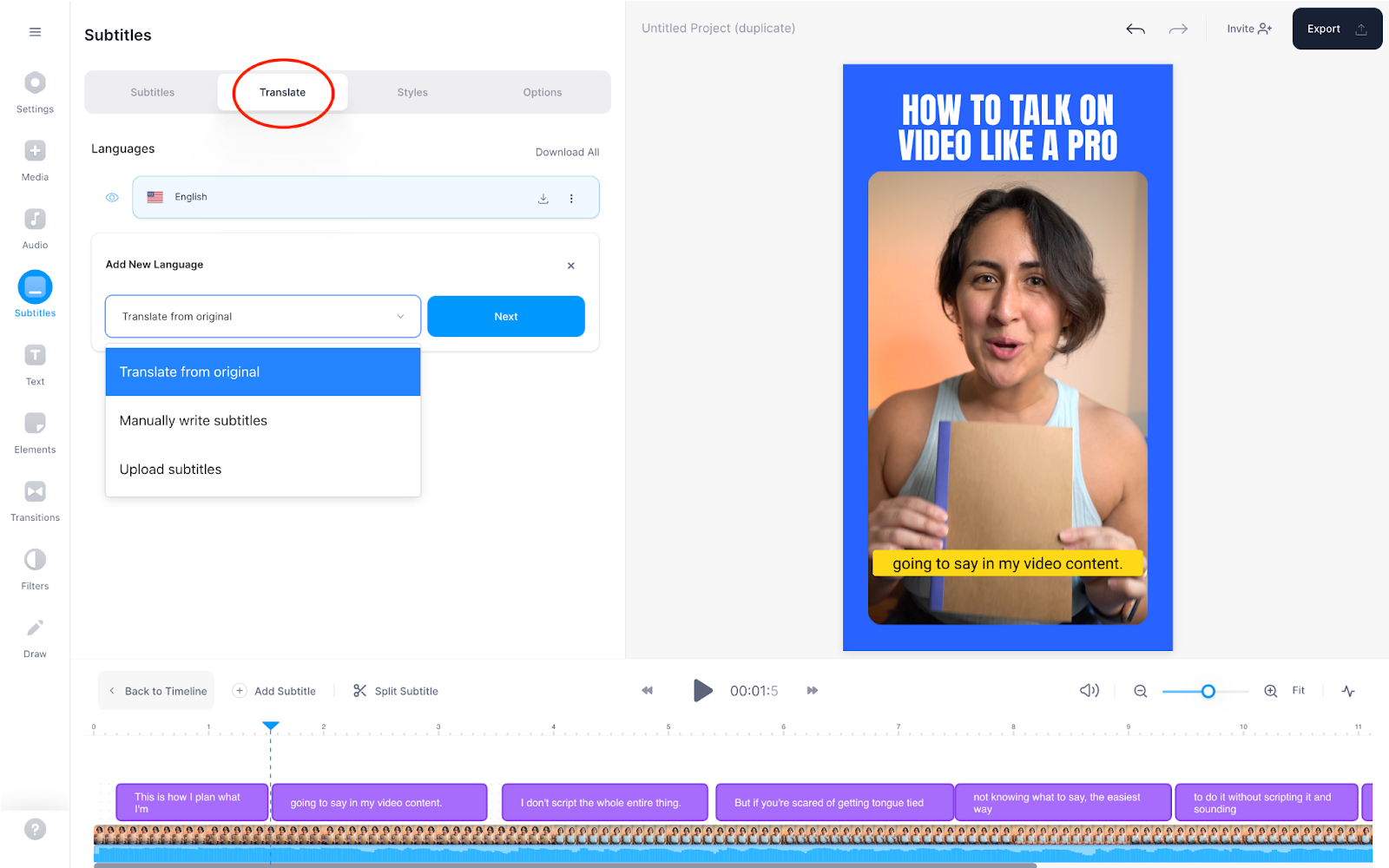
Select Add New Language here and choose from auto-translating the original subtitles to another language, manually adding subtitles in another language, or uploading a subtitle file with translated subtitle copy.
4. (Optional) Edit your video
Besides hardcoding subtitles, here's a quick glimpse of all the ways you can make a top-notch video with VEED – all while using only your email to log in to the tool.
- Record your video with the webcam recorder
- Access to a library of video templates
- Translate your subtitles
- Add music, sound effects, and stock footage from our media library
- Resize and repurpose video for all major social platforms by using the canvas resize feature
- Add filters and effects to your clips for a branded video experience
- Add an audio visualizer to your music or podcast video content
But if you just want the hardcoded captions skip to the next and final step.
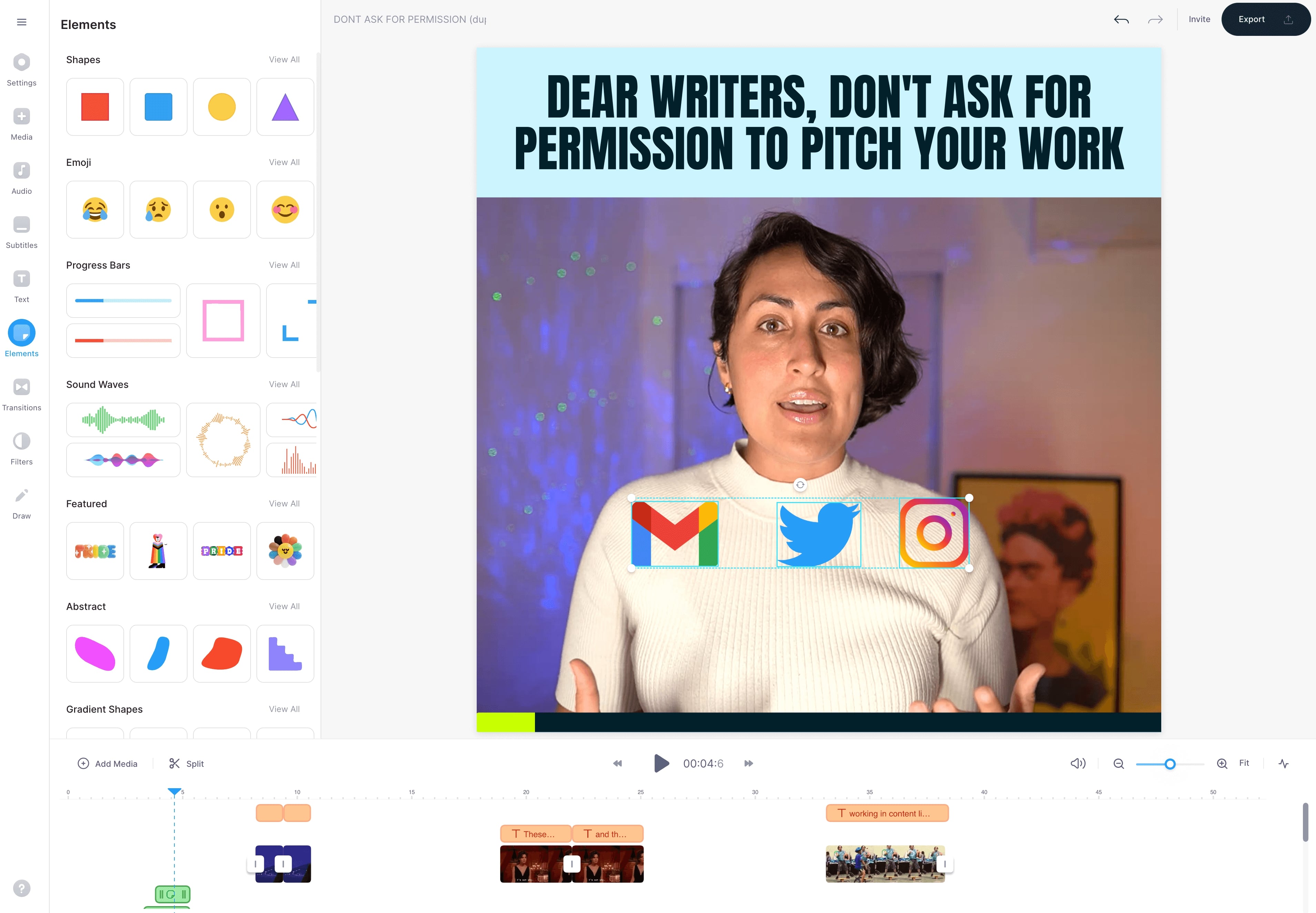
5. Export and download your video with hardcoded subtitles
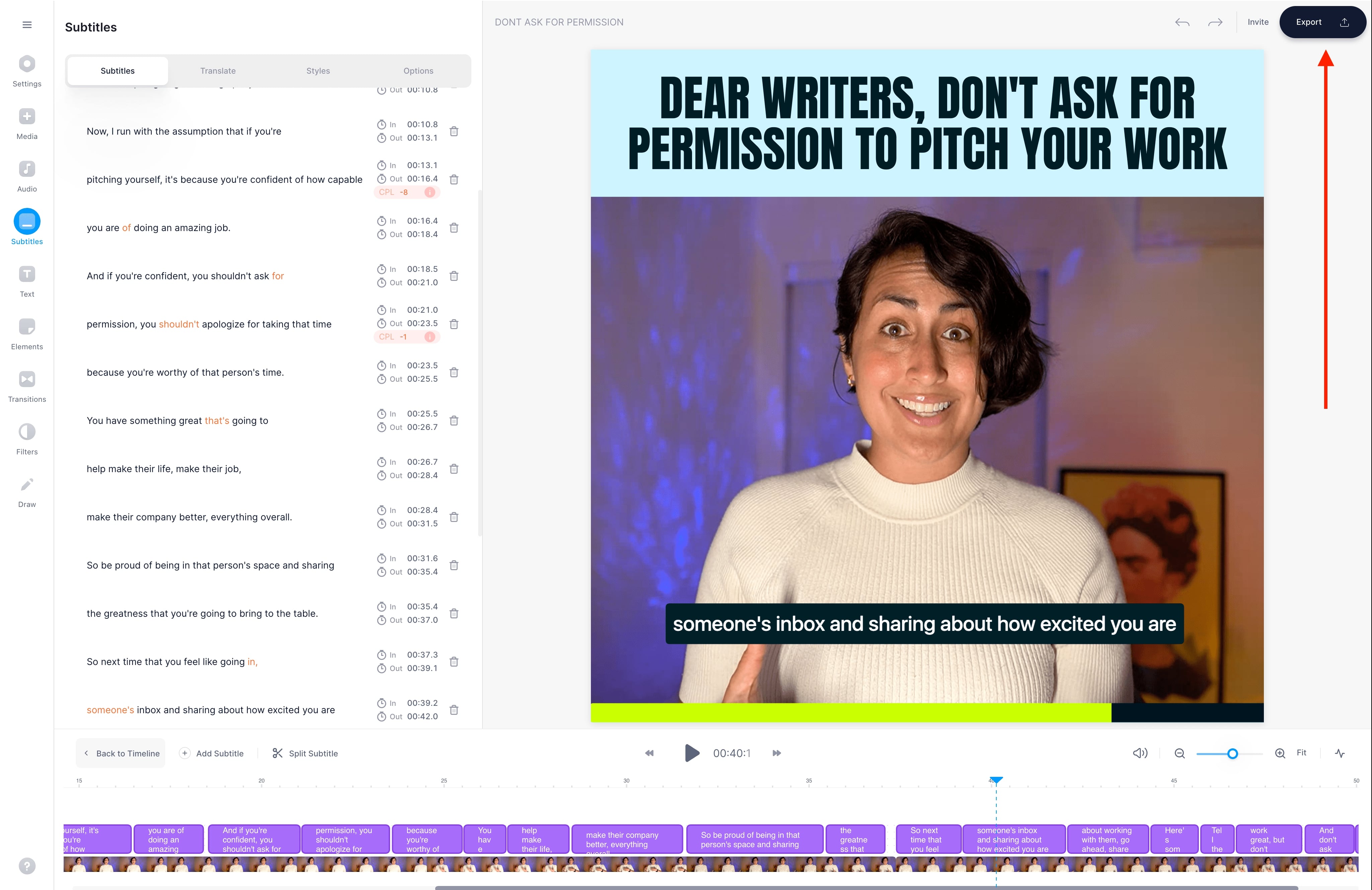
Last step: click on Export to toggle the export menu
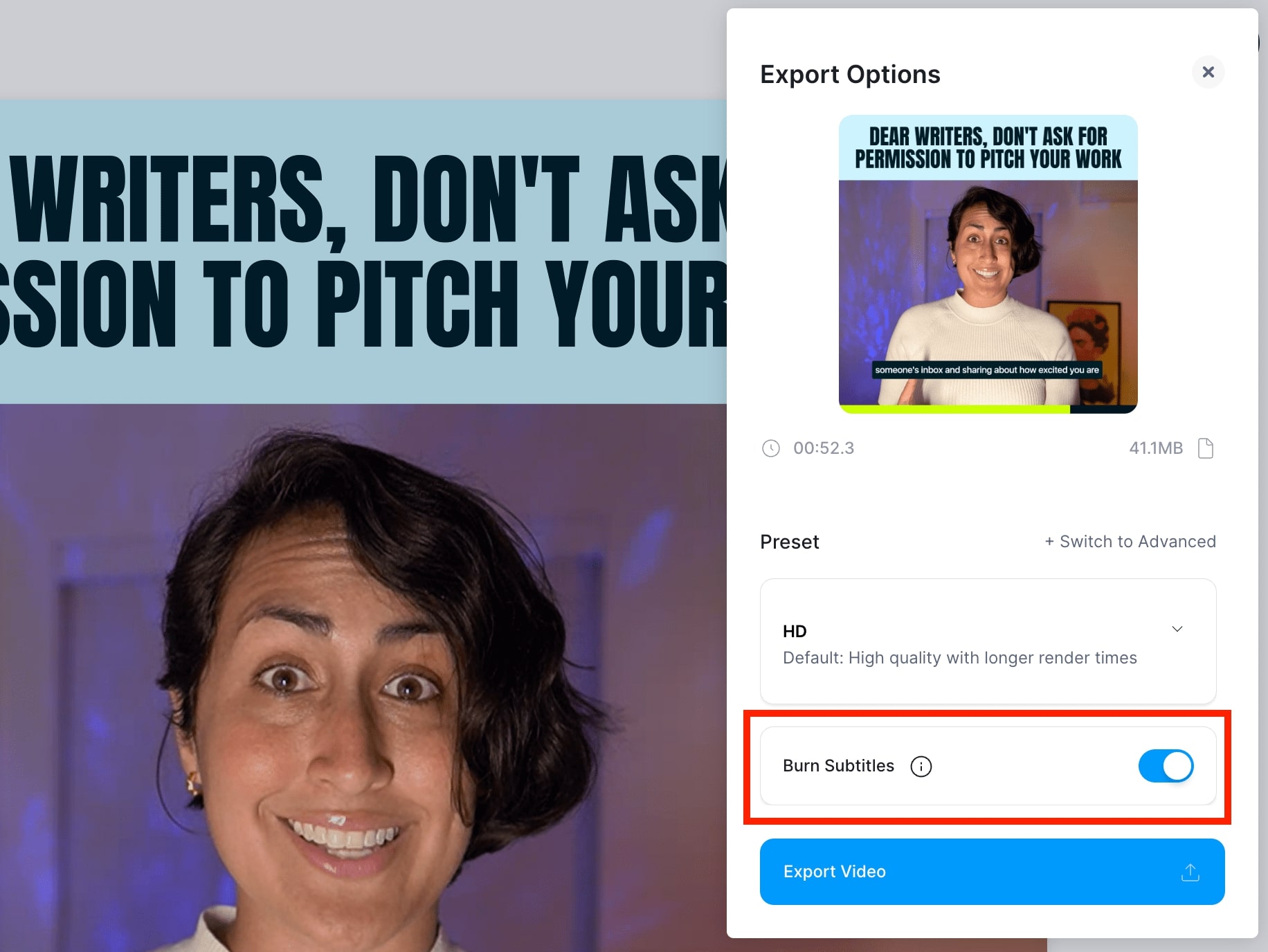
Make sure burn subtitles is turned on. You can also select an export preset if you want to play with your resolution settings. Click Export next.
Click the Download button on the download page to render the subtitles layered on top. And that’s it.
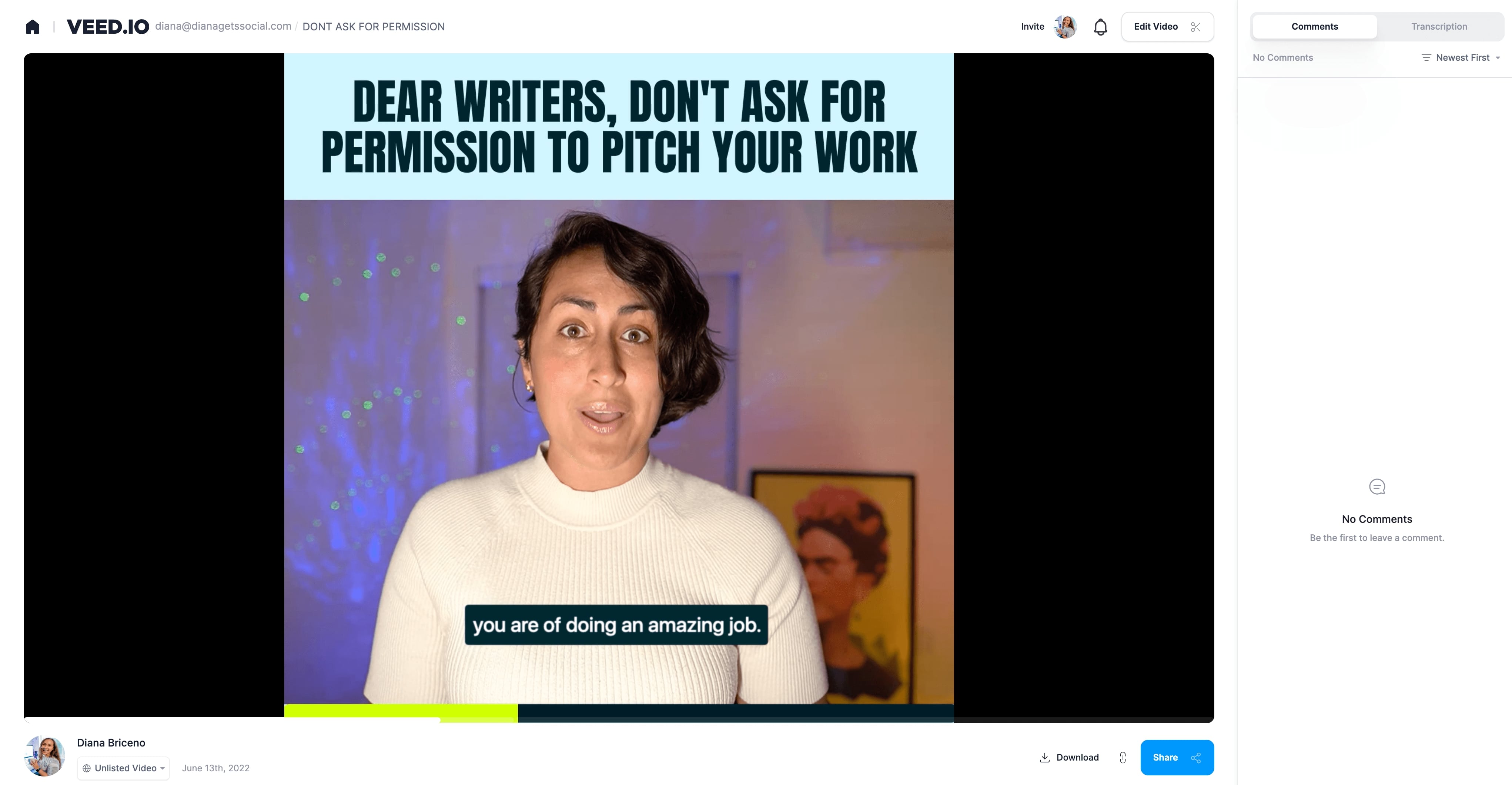
You can also get a shareable link to your video using the vertical link option to the right of the Download button.
Need to hardcode subtitles at scale? Use VEED’s Subtitles API
If you’re burning captions into hundreds or thousands of videos — for a video platform, an editing tool, an ad pipeline, or any high-volume content workflow — doing it one at a time in the editor doesn’t scale. VEED’s Subtitles API lets you automate transcription, styling, and burn-in programmatically with the same accuracy and dynamic styles as the editor.
Pricing is simple, per-minute, with a 1-minute minimum billable duration:
- Standard (≤ 1080p): $0.10/min (Basic) · $0.20/min (Dynamic)
- Pro (> 1080p): $0.20/min (Basic) · $0.40/min (Dynamic)
Basic captions are clean, burned-in subtitles. Dynamic captions are the animated, keyword-emphasized style built for social-first video. The Subtitles API integrates with the wider video API suite — so you can chain caption generation with lip sync, background removal, and AI video generation in the same call.
Comparing options before you pick? See the best subtitles and speech-to-text APIs in 2026 for a side-by-side breakdown.
[#TOC3]Best practices to format your hardcoded subtitles[#TOC3]
Avoid selecting whimsical decorative fonts that are hard to read (this includes fancy, cursive fonts). Here’s a complete guide to choosing readable subtitle fonts.
In short, though, these are 5 of the best subtitle fonts available inside VEED:
- Arial
- Helvetica
- Roboto
- Archivo
- Times
As for determining the font’s sizing, zoom out of your video to preview subtitles in the video’s original size. Adjust the size to make it legible as needed.
2. Improve legibility with a strong color contrast
Avoid text colors that blend in with your video’s background color. Use high-contrast colors so viewers don’t have to strain to understand the text. Use this resource on Web Aim to check contrast.
Still unsure? Add solid background to your captions so they’re easy to read.
3. Keep lines short and easy to read
We’ve already talked about how you can use VEED to merge short subtitle lines and split longer ones.
Other than that, avoid adding subtitle text on the far left and right edges to save it from getting cropped out by the video host destination.
Also, avoid squishing together letters in the text. Use VEED to adjust letter and line spacing for an optimal viewer experience.
Ready to add hardcode subtitles to your videos?
Hardcoded subtitles are one of the fastest ways to grow engagement and make your video accessible — your audience will thank you for the extra step.
VEED makes the process simple. Sign up for free and start creating post-ready video with subtitles today.