


Trusted by 1M+ creators
Video Frame Rate Converter
Adjust your video’s frame rate to the highest setting available to optimize playback
No credit card required

4.6
2,100+ reviews














Optimize playback with VEED’s frame rate converter
Low FPS can make your videos look choppy and laggy. You can improve your video’s playback by adjusting its frame rate to the highest setting available for your file – use VEED as a frame rate converter, and adjust your video’s frame rate online! Depending on your video file, you can set the frame rate to 16 FPS, 24 FPS, 30 FPS, or 60 FPS. You can even lower your video’s frame rate to create a stop-motion video effect or a GIF. Slowing down your video’s frame rate will also reduce its file size and make it easier to export. Increase the video’s frame rate limit to the highest setting available for the file to make it appear smoother and less jumpy. VEED supports all popular video file formats, including mp4, h264, MPEG, and more! Export your video in the highest quality.
How to change your video’s frame rate:
Step 01
Upload or record
Upload your video to VEED or start recording using our online webcam recorder.
Step 02
Edit video and change the frame rate
When you’re done editing, click ‘Done’ then go to ‘Advanced’ settings and choose the new frame rate you want. Note that the maximum FPS for your video would depend on your file.
Step 03
Export and share
Your video is now ready for download and sharing.
Learn More
Learn how to compress a video file without losing quality:

Make animated GIFs
Making your own animated GIFs is an excellent way to connect with your audience. GIFs are known to have a lower frame rate. Upload a video and lower its frame rate to convert it into a GIF. Use VEED to cut, trim and edit any video footage to remodel as GIF. You can also add text, stickers, emojis and drawings to give your animated GIFs a personal touch. VEED lets you download your videos in the GIF format, so you can share it on social media and instant messaging.
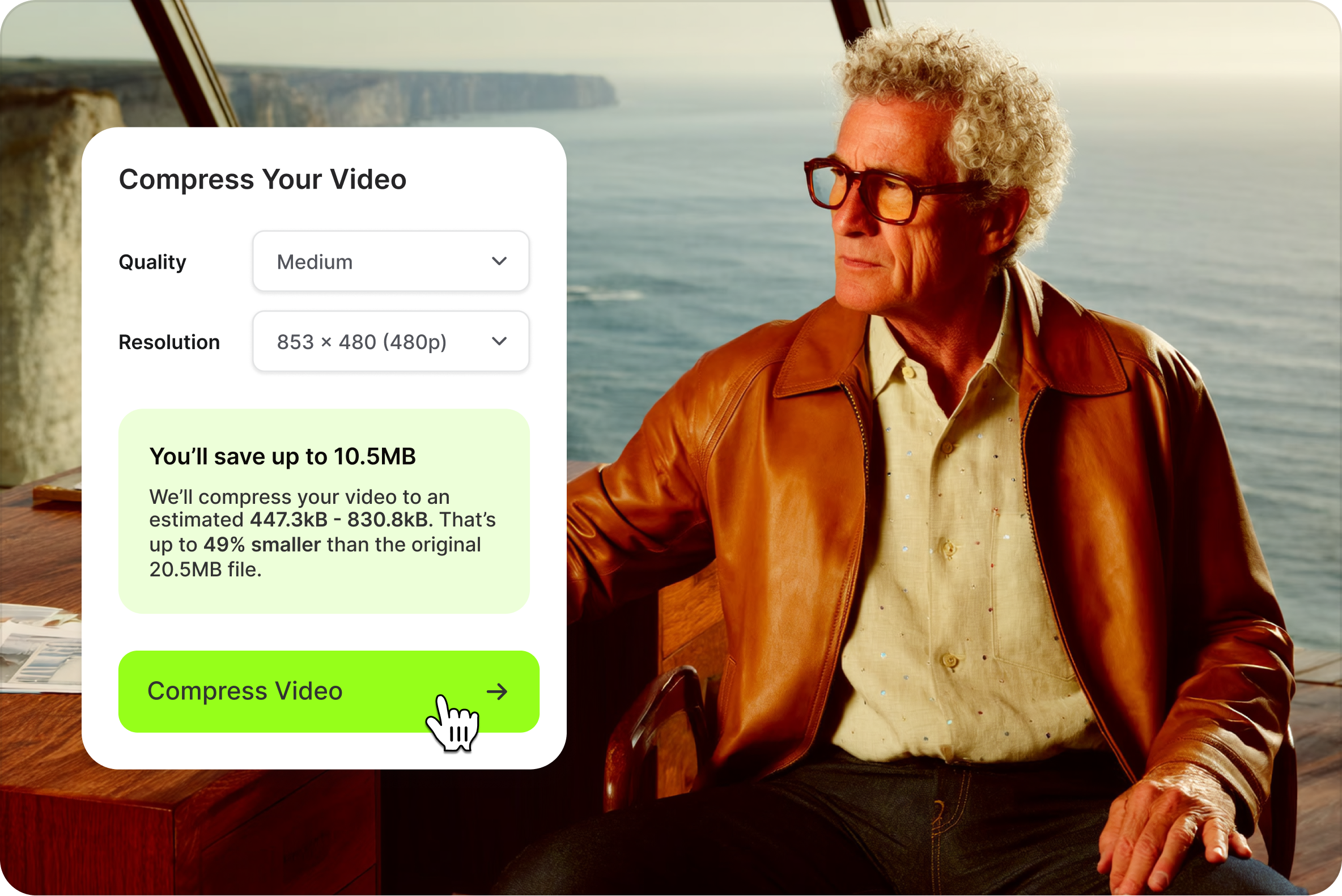
Reduce file size and improve compatibility
VEED has an online video compression tool to make your videos easier to share and attach to emails. Use VEED’s compression tool to reduce file size and increase its compatibility with streaming services and social media sites. Spend less time waiting for your videos to render, buffer and download. Our compression tool also lets you change a video’s frame rate, and further maximise its quality and functionality.
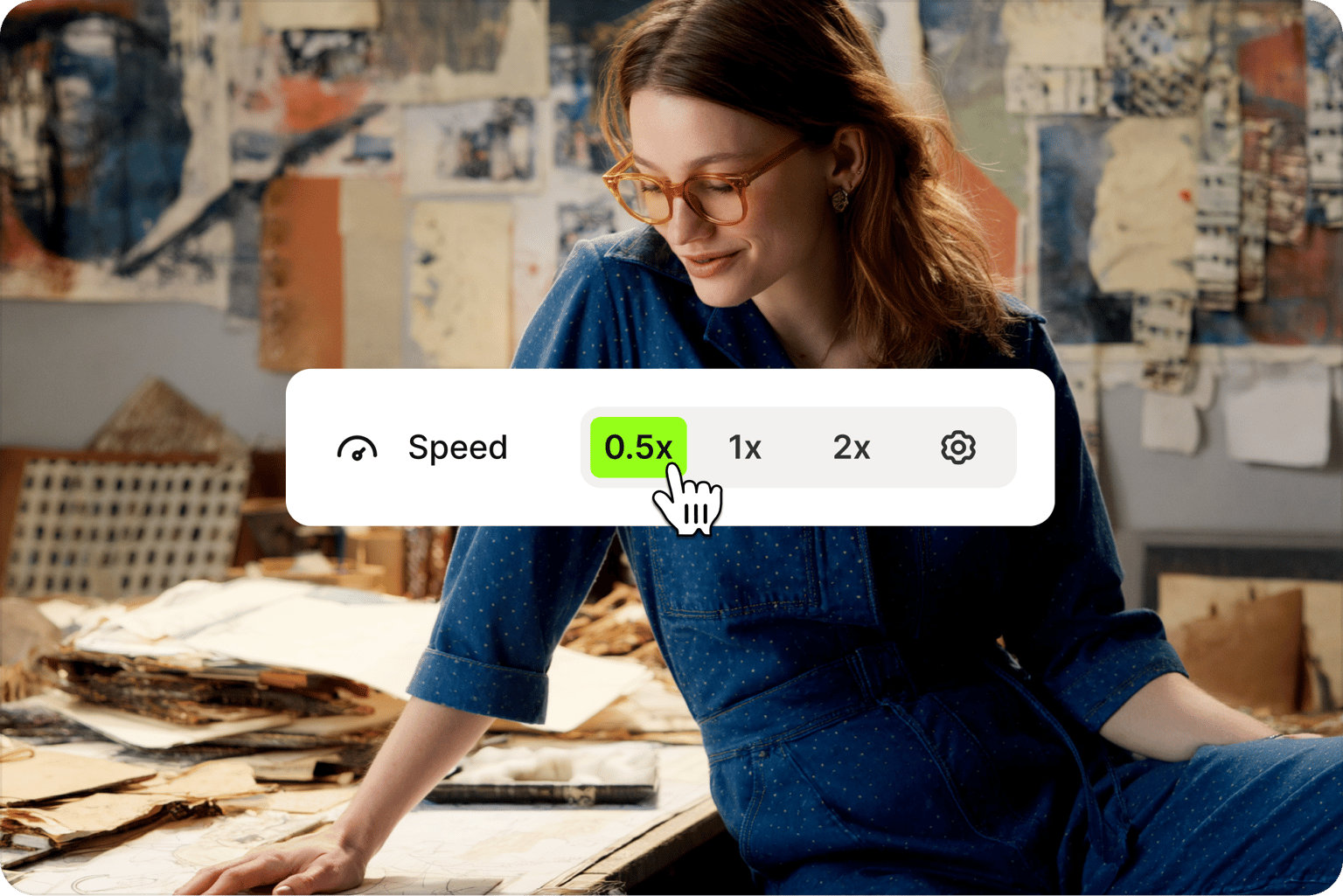
Create timelapse and slow motion effects
Try VEED's online speed changer to double your video speed, halve it, or set your own custom rate. Click the video track on the timeline and find the 'Speed' section in Settings. Use the preset options or click 'Custom' to enter your own number. Perfect for creating smooth slow-motion clips or condensing long footage into a shareable timelapse.
FAQ
Video frame rate, measured in frames per second (FPS), is how many frames or still images a video shows per second. Videos are essentially fast-moving images – the more images per second, the higher the frame rate and the smoother the video.
You also can think of frame rate like a flipbook. The faster you flip the pages, the smoother the animation!
- Upload your video or GIF
- Hit ‘Export’
- Select ‘Switch to Advanced’
- To reduce framerate, drag the ‘Framerate Limit’ button left
- To increase it, drag button to the right
- Press ‘Export Video’ to download
- 24 FPS - the standard for movies & TV shows; gives a natural look almost similar to how human eyes perceive motion
- 30 FPS - also commonly used in TV shows and 4K gaming; it gives a smoother, more realistic result than 24 FPS videos
- 60 FPS - great for slow-motion videos; it displays details that are easy to miss at lower frame rates
Video speed refers to the “duration” of the video, and how long it takes to move from beginning to end. The frame rate refers to how many frames (images) it flips per second. In other words, a slower speed would mean you finish the video quicker. A smaller frame rate would mean the video flips through fewer frames per second. This would make it look jumpier, as if it was freezing for a split-second.
The best frame rate for slow motion videos is 60 FPS to 240 FPS, or even higher. It depends on the look or effects you want to achieve, and the capabilities of your camera and video editor.
It depends. If you want to make your video easier to download and share, a lower frame rate is the way to go. Lower frame rates mean smaller file sizes. Movies and films are typically played at 24fps or 30fps. Higher frame rates like 60fps are perfect for high-quality HD videos, but they tend to have larger file sizes.
If you want a clearer, smoother video, 60 FPS is better than 30 FPS. But if you want to make your video easier to download and share, a lower frame rate is the way to go.
You can upload and watch videos on YouTube with a maximum frame rate of 60 FPS.
Loved by creators.
Loved by the Fortune 500
“
With VEED I didn't need 15 tutorials - I jumped straight in and started editing.

Gwenne Wilcox
Founder,
Brand Brainery
“
You can go beyond choppping things. VEED actually makes my videos look great.

Michael Glover
Demand Gen Manager,
ConvertFlow
“
The first four videos i created with VEED got over 40,000 impressions on LinkedIn.

Travis Tyler
Senior Content Producer,
PandaDoc
“
I found VEED at the right time: if you're making UGC ads and not using Eye Contact Correction and Noise Reduction on VEED you're missing out on ROI.

Sebastian Schurgers
Head of Growth Marketing,
Gronda
“
With VEED I didn't need 15 tutorials - I jumped straight in and started editing.
Gwenne Wilcox
Founder,
Brand Brainery
“
You can go beyond choppping things. VEED actually makes my videos look great.
Michael Glover
Demand Gen Manager,
ConvertFlow
“
The first four videos i created with VEED got over 40,000 impressions on LinkedIn.
Travis Tyler
Senior Content Producer,
PandaDoc
“
I found VEED at the right time: if you're making UGC ads and not using Eye Contact Correction and Noise Reduction on VEED you're missing out on ROI.
Sebastian Schurgers
Head of Growth Marketing,
Gronda
“
The first four videos i created with VEED got over 40,000 impressions on LinkedIn.
Travis Tyler
Senior Content Producer,
PandaDoc
“
I found VEED at the right time: if you're making UGC ads and not using Eye Contact Correction and Noise Reduction on VEED you're missing out on ROI.
Sebastian Schurgers
Head of Growth Marketing,
Gronda
“
With VEED I didn't need 15 tutorials - I jumped straight in and started editing.
Gwenne Wilcox
Founder,
Brand Brainery
“
You can go beyond choppping things. VEED actually makes my videos look great.
Michael Glover
Demand Gen Manager,
ConvertFlow
Discover more
Explore related tools
More from VEED

How to Crop a Video (Free and Paid Easy-to-Use Methods)
The easiest way to crop videos (free & paid ways) whether on Windows 10 with VLC or online with VEED. Here's how!
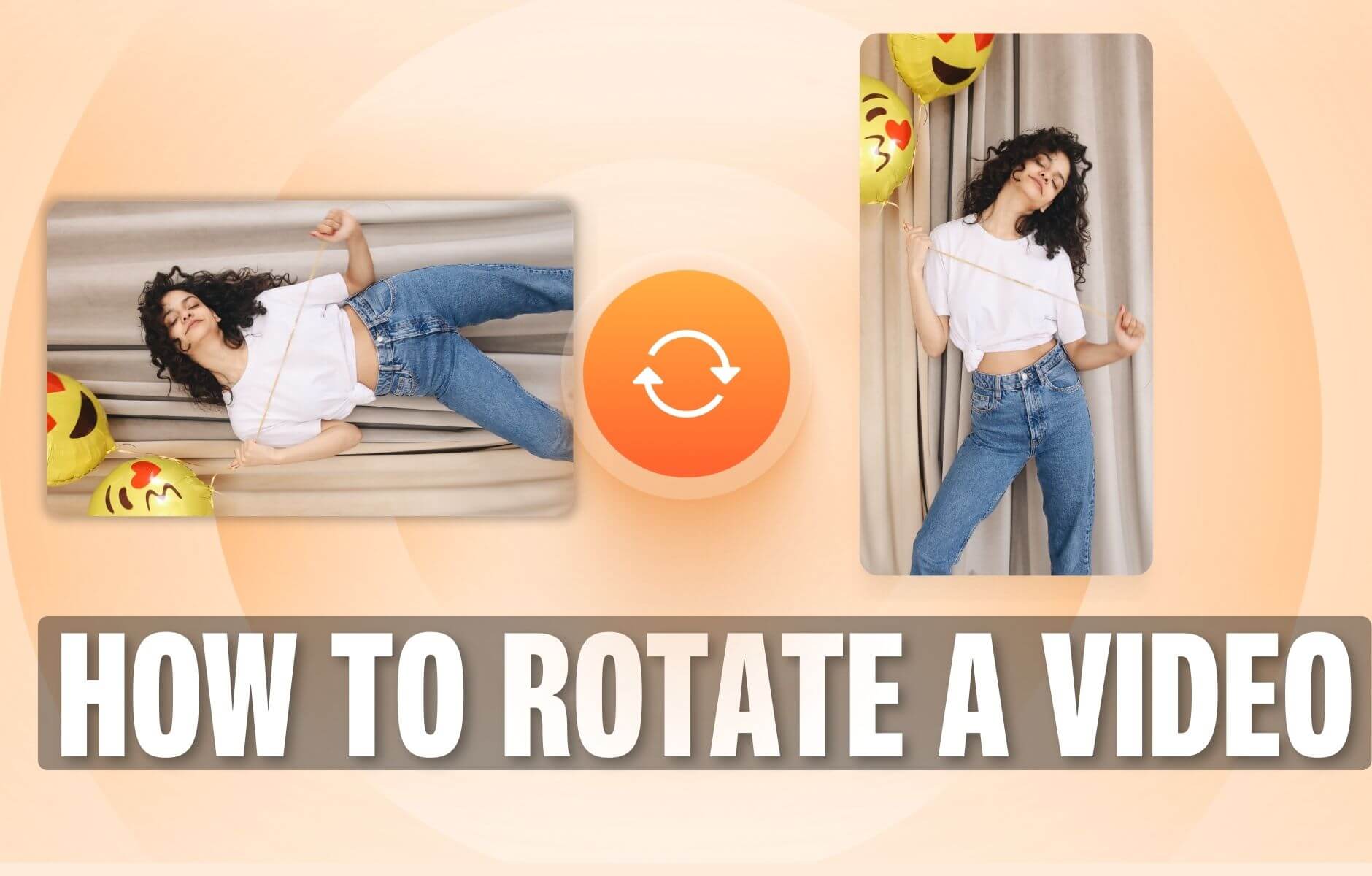
How to Rotate a Video (6 Quick & Easy Ways)
How to easily rotate a video whether you're on your desktop, mobile, or on your web browser.
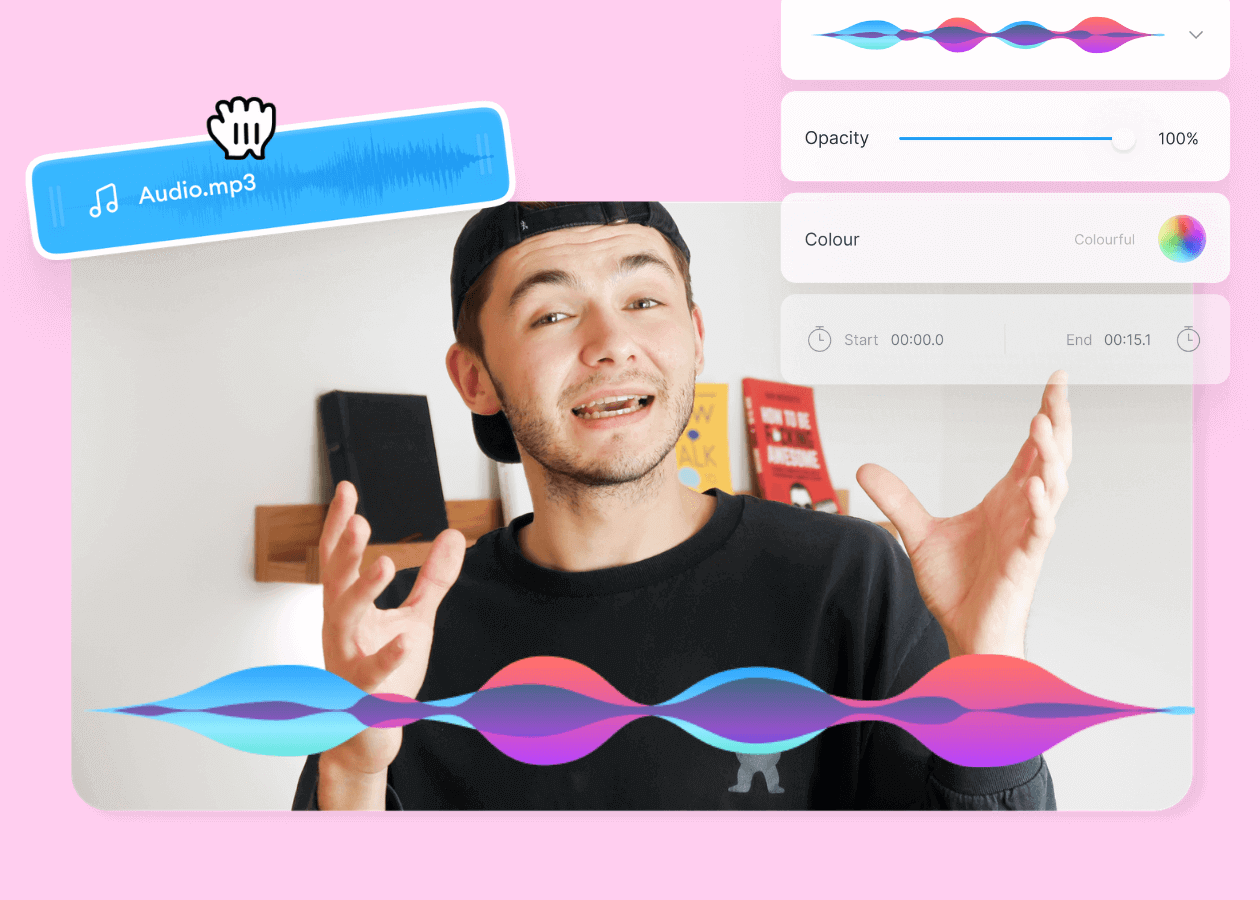
Top 5 Best Music Visualizers [Free and Paid]
Here are some of the best music visualizers available on the internet and how to use them!
Trusted by 1M+ creators
When it comes to amazing videos, all you need is VEED
No credit card required
More than a frame rate converter
Changing a video's frame rate is one step in getting it ready to post and share. VEED is an AI video creation platform where you can generate, refine, and export videos in minutes. Done optimizing your video file? Fine-tune your video by adding captions, resizing for a new platform, and layering in background music. Go from raw footage to post-ready video, all in one place. Sign up for VEED now to get started.