Subtitles are a small detail that makes or breaks how a video lands. A typo, a missed word, or a caption running half a second behind the audio is enough to pull viewers out of the story. Knowing how to edit subtitles is the difference between captions that look professional and captions that look auto-generated and forgotten about.
This guide covers the four most common subtitle editing jobs:
- Editing the text of an existing SRT or VTT file (typos, names, timing)
- Fixing sync issues when captions run ahead of or behind the audio
- Correcting auto-generated captions before publishing
- Restyling subtitles — font, color, position, animation — to match your brand
We'll show how to handle each one in the browser using VEED's subtitle editor, plus when a desktop text editor is the better tool. The whole workflow runs online — no MKVToolNix, no Subtitle Edit install, no admin rights needed.
Key takeaways
- Editing subtitles takes four steps: open a subtitle editor, upload your SRT or VTT file, edit text and timing, then download the new file or hardcode it into the video.
- For text-only fixes (typos, names, timing tweaks), any text editor opens an SRT file — but you lose the visual preview. A browser-based subtitle editor is faster for everything else.
- Sync issues are usually a frame-rate mismatch or a leading offset. Both are fixable in seconds with timing controls.
- Auto-generated captions need a once-over for proper nouns, brand terms, and homophones — that's where most accuracy drops happen.
- Save your edited subtitles as SRT for universal compatibility, VTT for HTML5 web players, or TXT for transcripts and content repurposing.

How to edit subtitles online: the 4-step method
This is the fastest workflow for most users. It runs in the browser, works on any operating system, and supports SRT, VTT, ASS, SSA, and TXT files.
1. Open Veed's subtitle editor
The tool we'll be using is Veed. Veed had an online subtitle editor which allows you to make changes to any SRT file's subtitles. So head over to veed.io to start making changes to your subtitles.
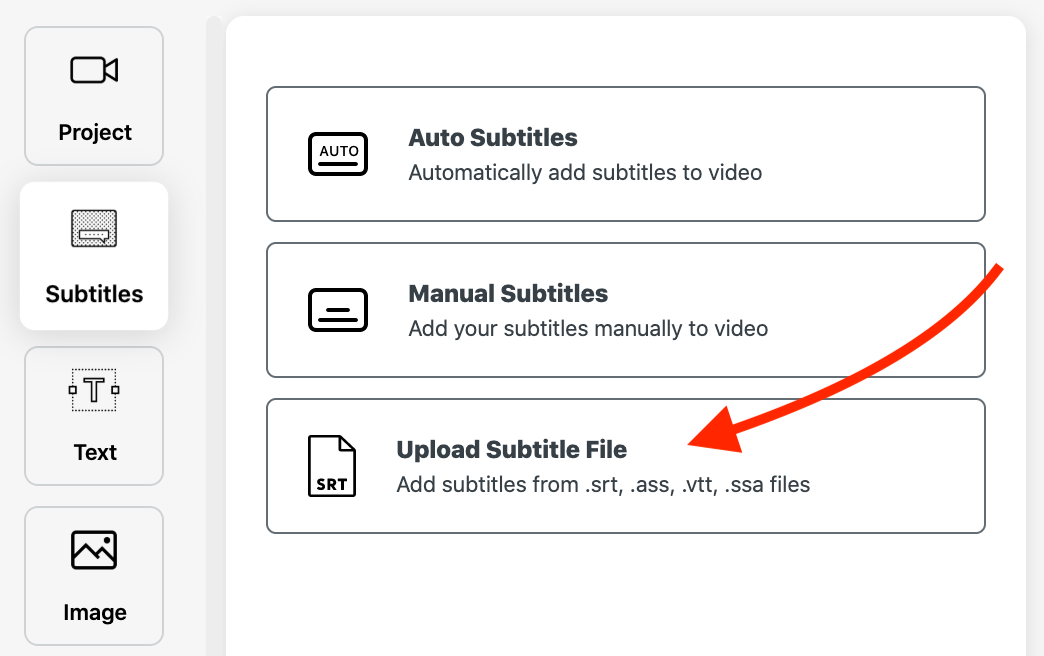
To access the subtitle editor, click on subtitles in the left toolbar.
2. Upload your SRT file
Once you've click on subtitles in the left toolbar, you will have the option to upload your SRT. Click on the Upload Subtitle File button and then select the SRT file on your computer you wish to make changes to.
3. Edit your subtitles
Your subtitles will only take a second to upload to the editor. Once they have, you'll be able to make changes to your subtitles' text, layout, and timecode.
Just click on the subtitle section and edit the text just like you would anywhere else on your computer. You can also make that particular section have a longer or shorter timeframe, or completely remove it by moving it's text to another section.
You can also use Veed to create an SRT file from scratch or auto-subtitle one of your videos.

4. Download your subtitles
After your subtitles have been edited, you can choose to download them as a .srt file or you can choose to save them as a .txt file. If you want to upload them to social media, I would recommend downloading directly as a .srt file.
To download just click on Options at the top of the subtitles editor and choose which download option you want.
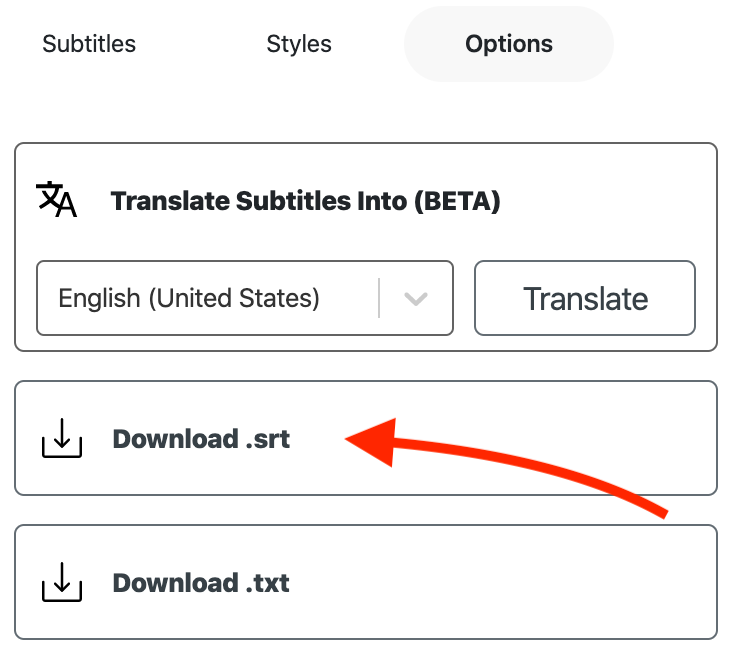
You can also save your subtitles into the actual video, this baked-in technique allows you to add subtitles to any video you want without having software to read a SubRip Subtitle file at the same time.
That is how you can easily edit your subtitles using Veed. If you were looking for a different approach, you can also edit your SRT on desktop using a text editor.
How to fix subtitle sync issues
If your subtitles run consistently ahead of or behind the audio, you have one of two problems:
Problem 1: every caption is offset by the same amount
This is the most common issue. The subtitle file was created for a slightly different version of the video. Fix it with a bulk timing offset:
- Open the Subtitles panel in VEED
- Pick the offset direction (forward or back)
- Enter how many seconds (or fractions of a second) to shift
- Apply to all captions at once
Problem 2: drift gets worse as the video plays
This is usually a frame-rate mismatch. The subtitle file was timed against a 24 fps source but the video plays at 25 or 29.97 fps (or vice versa). The captions sync at the start but drift further out as the video runs.
Two fixes:
- Re-transcribe the audio. Run Auto Subtitle on the actual video file you have. Fresh captions are timed to the file, so drift disappears.
- Use a desktop tool with frame-rate correction. Subtitle Edit (Windows/Mac) has a frame-rate change function that re-times every caption proportionally. Useful when you specifically want to keep the original captions.
How to correct auto-generated subtitles
Auto-captioning tools are good — VEED's hits up to 99.9% accuracy on clear audio — but they still miss the same things every time. If you're editing AI-generated captions, here's where to look first:
- Proper nouns. Names of people, places, brands, and products. Auto-captioning guesses, and it usually guesses wrong on anything not in its training data.
- Industry jargon. Technical terms, acronyms, and field-specific vocabulary. Same problem as proper nouns.
- Homophones. "Their/there/they're," "to/too/two," "your/you're." The model picks one based on context — often the wrong one in fast or unclear speech.
- Numbers and dates. "Twenty-twenty-six" might come out as "20 20 6" or "2026." Pick a format and standardize.
- Punctuation in long sentences. AI tends to under-punctuate, leading to walls of text. Break long captions with commas and periods, or split them into multiple lines.
VEED's editor flags low-confidence words automatically — words the AI wasn't sure about. Start there. Most accuracy fixes are done in under five minutes per minute of video.
Editing SRT files in a text editor (when to use this)
SRT files are plain text. You can open them in Notepad, TextEdit, VS Code, or any text editor. Each subtitle entry looks like this:
100:00:01,000 --> 00:00:04,000Welcome to the tutorial.200:00:04,500 --> 00:00:08,000Let's get started.
This is the fastest method when:
- You only need to fix a few typos and you don't need a video preview
- You're scripting bulk find-and-replace across long files
- The browser tool is slow because the video file is huge
Skip the text editor and use a visual subtitle editor when:
- You need to see the captions on the video as you edit
- Timing changes are involved (much faster with a timeline)
- You're restyling fonts, colors, or positions
- You need to translate to another language afterward
How to remove or hide subtitles from a video
This depends on whether the subtitles are soft-coded (separate file or track) or hardcoded (burned into the video):
- Soft-coded subtitles. If the captions live in a separate SRT file, just don't include the file when you upload or share the video. If they're embedded as a track inside an MKV or MP4 container, most video editors let you delete the subtitle stream.
- Hardcoded subtitles. Once captions are burned into the video frames, removing them cleanly is hard. The two options are: re-export from the original source without subtitles (if you have it), or use a video inpainting tool to paint over the burned-in text — slow and imperfect.
Edit subtitles, then keep going
Most subtitle editors stop at the SRT file. VEED keeps going. Once your captions are clean, you can translate them to 125+ languages, restyle them with dynamic word-by-word animations for short-form video, or burn them into a re-cut version of the video — all in the same workflow.
VEED is the AI video creation platform built to grow your brand on social. Subtitle editing sits inside the same workflow as the rest of your video creation, so the same tool that fixes a typo in your SRT file can also translate the captions to Spanish, convert formats, or export the video with the new captions burned in.
Edit your next subtitle file in your browser
Here's what to remember:
- Visual editor wins for most jobs. Text fixes, timing, restyling — all faster with a video preview.
- SRT for everywhere, VTT for web, TXT for transcripts. If in doubt, default to SRT.
- Sync issues are fixable. Use a bulk offset for uniform shifts, re-transcribe for frame-rate drift.
- Auto-captions need proofreading. Names, jargon, homophones, and numbers are the usual offenders.
Next step: Open VEED's subtitle editor in your browser, free to start. SRT, VTT, ASS, and SSA files supported.