Most viewers won't watch a video they can't understand — and on social, they won't even pause. If your video is in one language but your audience speaks another, translation subtitles are the difference between a video that travels and one that flatlines outside its home market.
The good news: you don't need a translator, a separate transcription service, or hours of timing work. AI handles all of it. Upload a video, auto-generate subtitles, translate them into the language your audience speaks, and export — all inside one workflow.
This guide walks through every step using VEED, the AI video creation platform built for social. By the end, you'll have a fully translated, on-brand subtitled video ready to publish to any platform.
Key takeaways
- Generate auto-subtitles first, then translate. VEED handles both inside one project, no third-party tools required.
- AI translation supports 125+ languages with up to 99.9% transcription accuracy on the source language.
- Always review and edit machine translations before publishing — accuracy depends on source audio quality, regional dialect, and idiomatic phrasing.
- Customize subtitle font, color, and animation to match your brand kit so translated videos still look like yours.
- Export with subtitles burned in, or download SRT/VTT/TXT files for platforms that support them (available on paid plans).

Why add translation subtitles to your videos?
Translation subtitles do more than break a language barrier. They expand the lifetime value of every video you produce. Here's why they matter:
- Reach global audiences without re-recording. One source video can become 5 or 10 localized versions in minutes — no studio time, no voice talent, no re-shooting.
- Boost engagement on muted feeds. Around 85% of mobile viewers watch with sound off. Translated captions keep them watching even when they don't share a language with your narrator.
- Improve accessibility and inclusion. Translated subtitles serve viewers with hearing loss in any language, not just the source.
- Strengthen multilingual SEO. Search engines index subtitle text. Translated SRT files help your video surface in non-English search results.
How to automatically add Subtitles to videos in under 60 Sseconds
1) Go to VEED and upload the video you automatically want to add subtitles to
Note: If you want to save your projects and start new ones, just sign up for free at VEED (you only literally only need to enter your email).
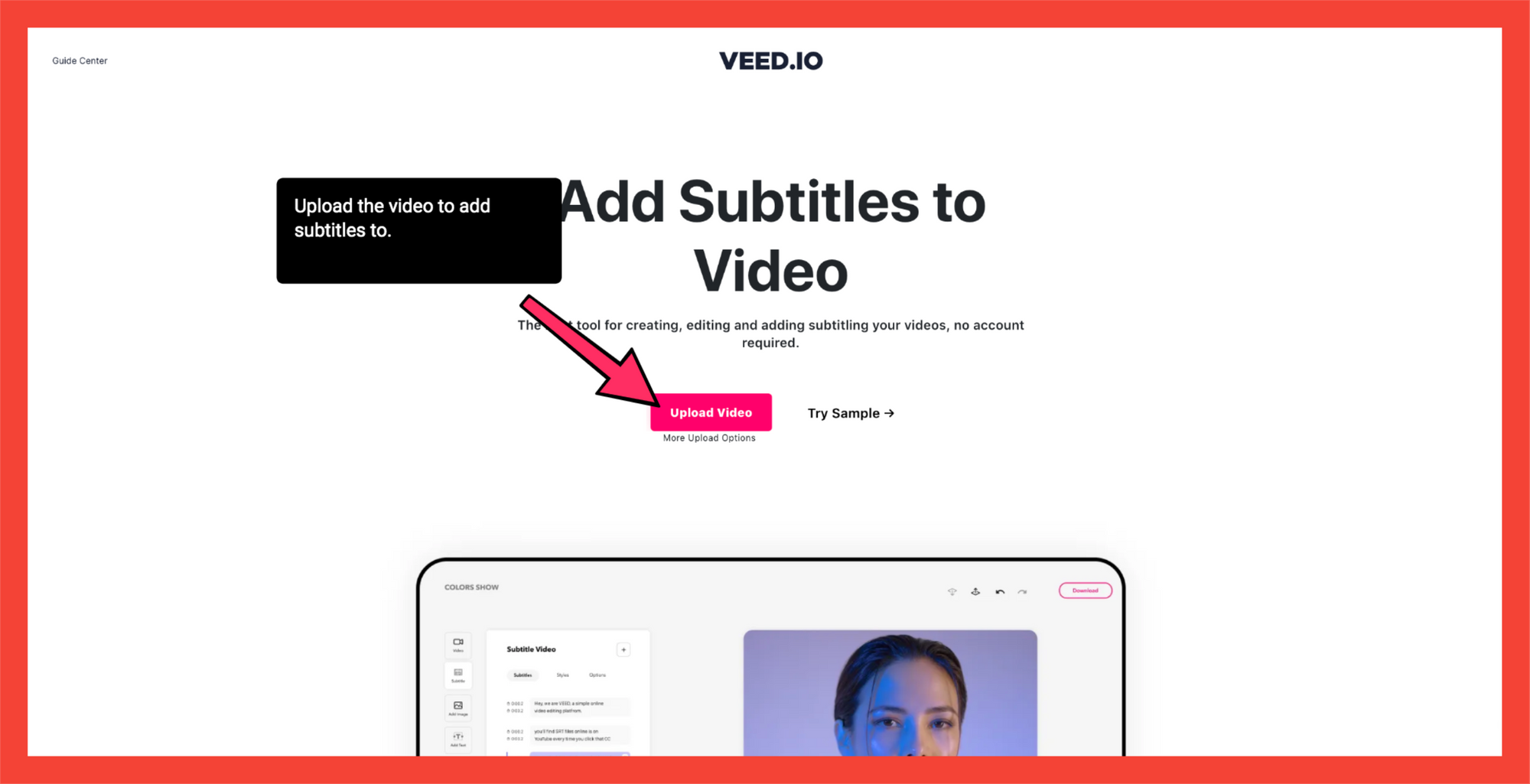
You can upload your MP4 file from:
- Your personal folder
- Dropbox
- Camera
- YouTube link
2) In the left toolbar, click on Subtitle
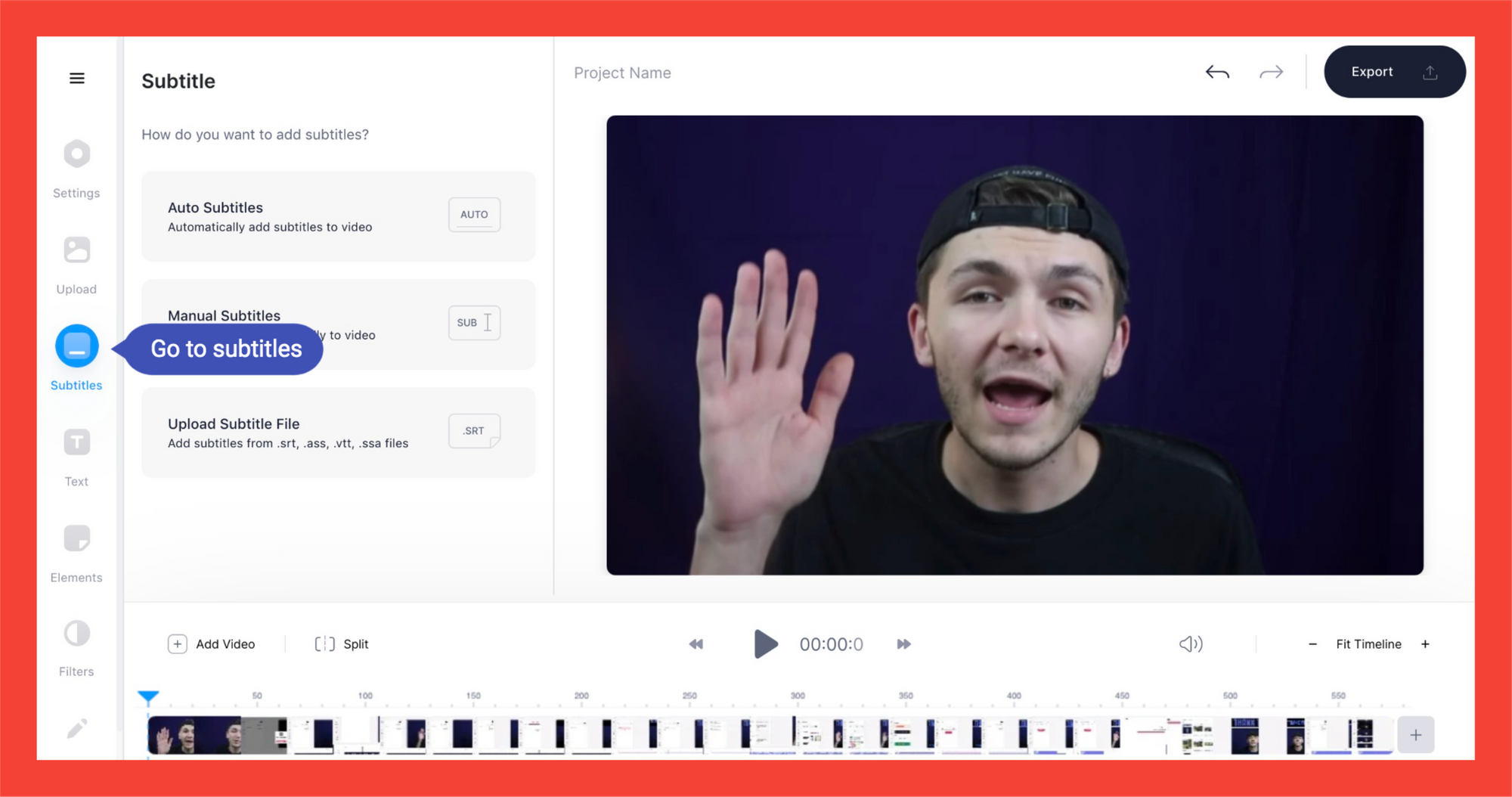
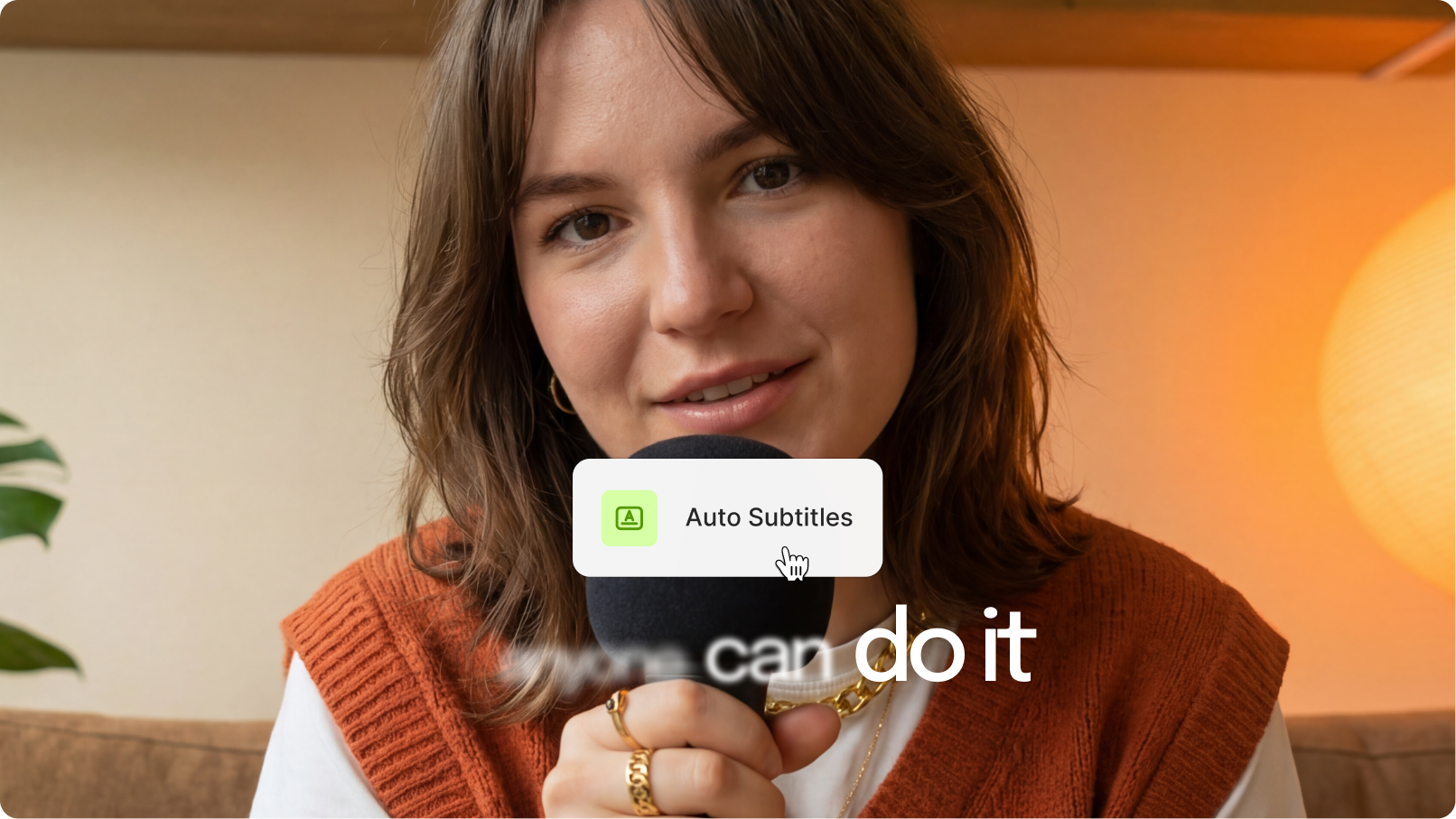
3. Click on Auto Subtitles
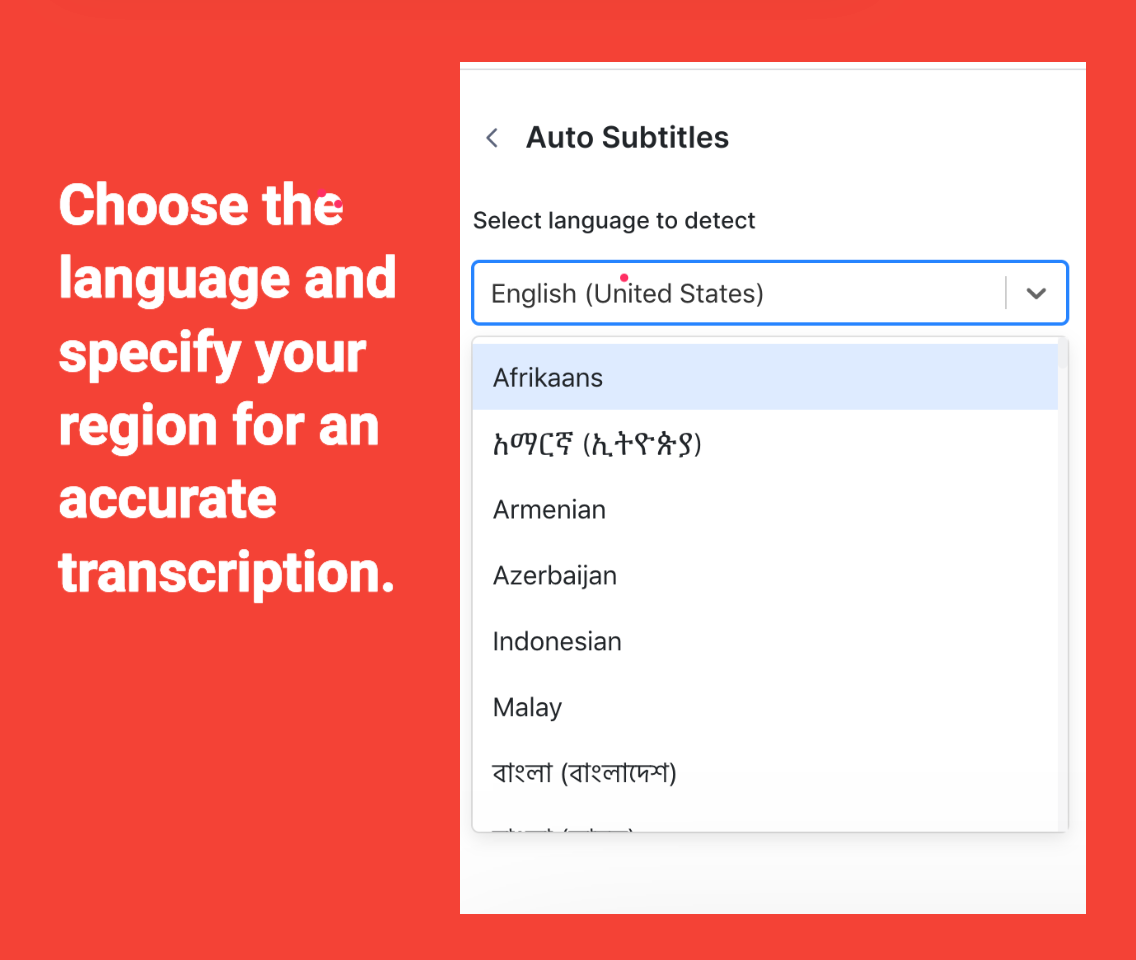
4. Choose your language
You need to remember to choose not only the language but also specify the regional option.
VEED’s AI transcription is pretty powerful, but it won’t be able to properly automatically transcribe an English accent if you choose English subtitles from USA. Different accents mean different ways of pronouncing the same words.
5. Click Start
Now, wait for it to render and automatically add subtitles to your MP4 file. It should be done in no time. As VEED says, please be patient 🤖.
In the media player, should now see captions playing. You can go to the subtitles editor to change your subtitles:
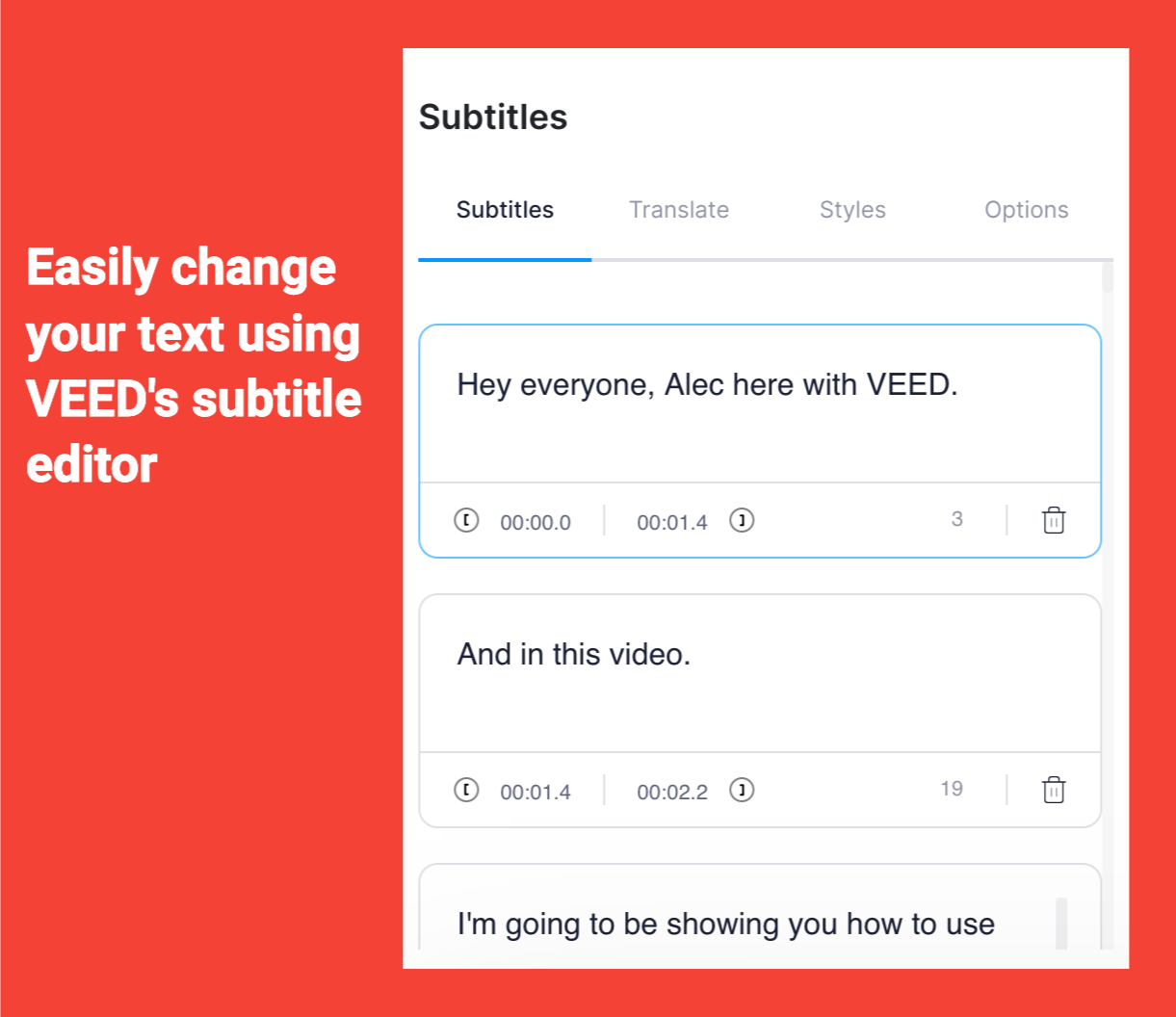
6a. Go to Options to download the subtitles as either SRT, VTT, or TXT files format
6b. With the subtitles added into the video, hit Export
Otherwise, you can download videos with the subtitles hardcoded into it. There you have it. You've just added captions or subtitles to video.
How to automatically translate the subtitles you’ve added to your MP4 videos
Now that you’ve learned how to automatically add subtitles to MP4 video file in a super quick and easy way, here’s how you can also automatically translate them in a few steps.
1) Go to Subtitles in the left toolbar
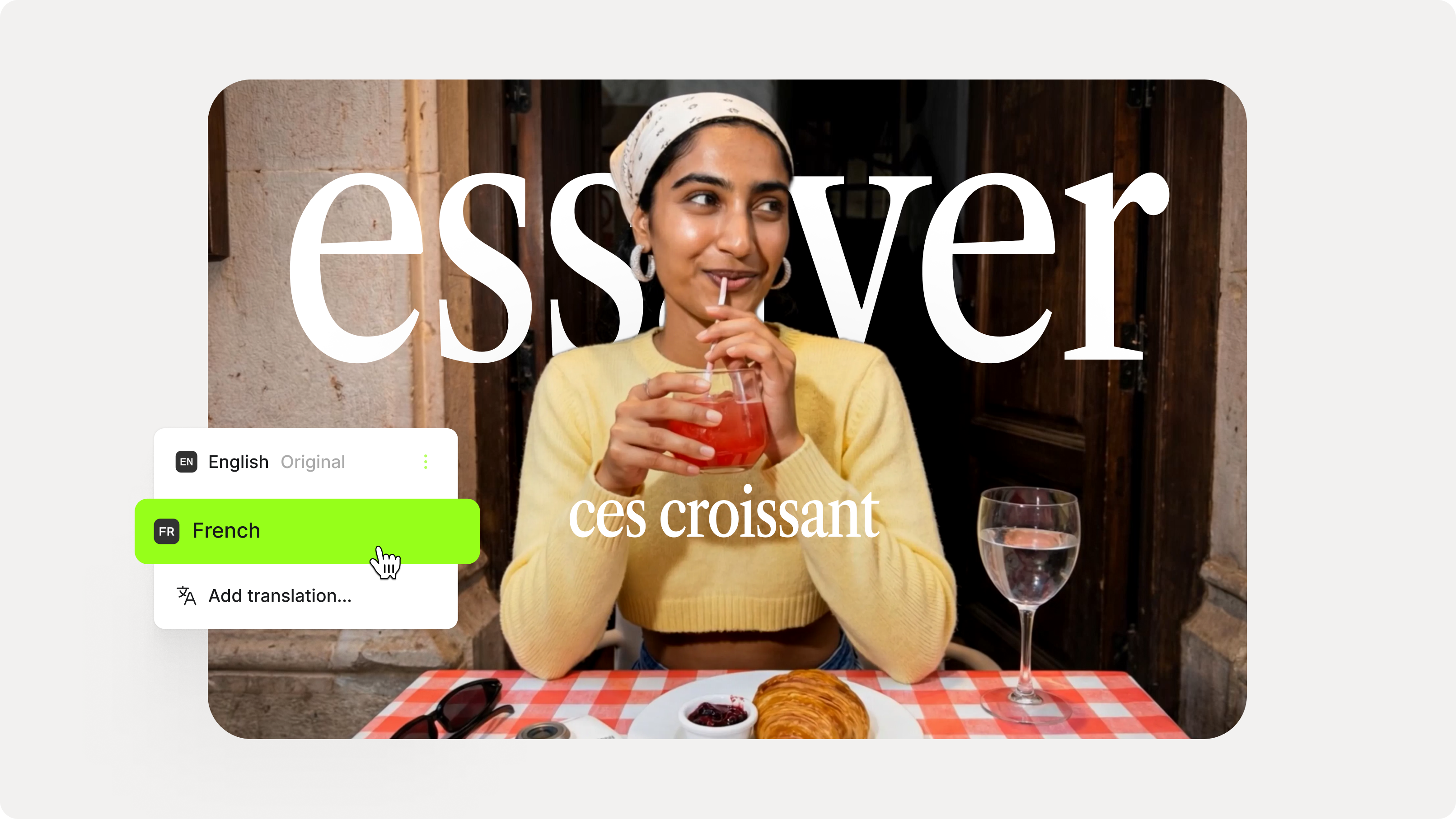
2) Go to the Translate tab
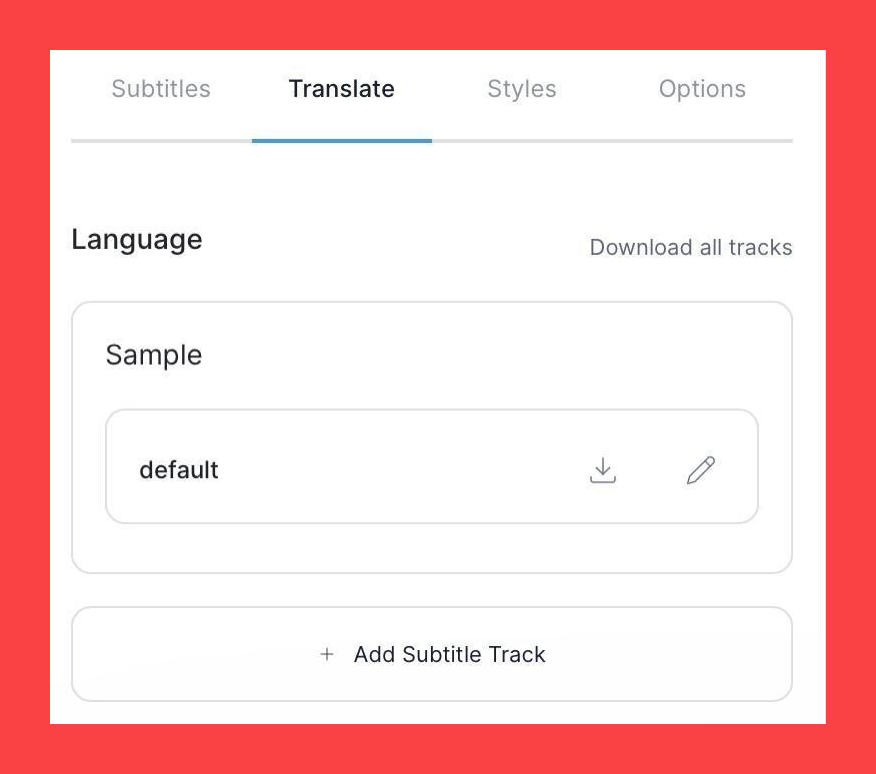
3) Click on Add Subtitle Track
4) Enter the language you want to translate the original MP4 content to.
So there are two drop-down fields.
In the left field, choose the language you want to translate the subtitles into.
In the right field, you can either choose to:
- Translate from the original language. For this tutorial, choose this option.
- Translate from a subtitle file.
5. Hit Create
6. Click on Edit to activate that translated subtitle track for your MP4 video
In the video player, you should see which subtitle language is playing.
7a. Download one of the translated subtitle tracks as an .srt file by clicking on their file name, next to the small download tray icon
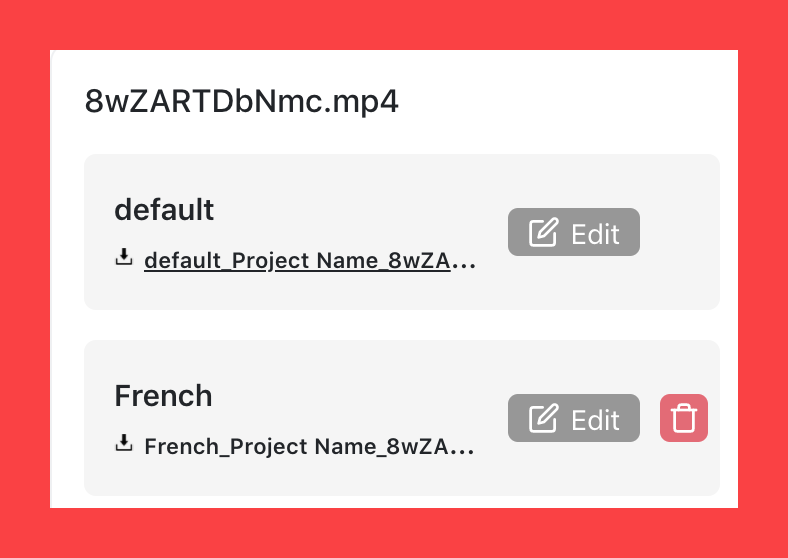
7b. Go to Options to download all the subtitle tracks as either a zipped TXT, VTT file or SRT file.
7c. Hit Export to download the video with the chosen (translated) subtitle tracks added into the MP4 video.
There you have it… 3 different options to get your translated subtitles!
Tips for better translation subtitles
- Start with clean source audio. Translation accuracy depends on transcription accuracy. A clear mic and minimal background noise produce better source subtitles, which produce better translations.
- Translate one language at a time. Generate the source subtitles, review them, then translate. Translating before reviewing source accuracy multiplies any errors across every target language.
- Keep brand names and product names consistent. AI sometimes translates proper nouns — VEED becomes "weed" in some languages. Lock these in your review pass.
- Review for line length, especially in German, Russian, and Arabic. Translated text often runs longer than the source. If a line spills over the screen edge, split it into two.
- Use a native speaker for high-stakes content. AI translation is excellent for social posts, tutorials, and product demos. For legal disclaimers, medical content, or paid campaigns in unfamiliar markets, get a native speaker review before publishing.
Common use cases for translation subtitles
Translating foreign-language video into English
Got a video in Spanish, French, Tagalog, or any other language and need English subtitles? Upload the video, auto-generate subtitles in the source language, then translate to English. The same workflow runs in reverse — translate from English into 125+ other languages.
Localizing social content for international markets
Marketers running paid social across regions can generate one master video, then export multiple language versions in minutes. This cuts production cost dramatically compared to filming or dubbing each market separately.
Adding burned-in subtitles for TikTok, Reels, and Shorts
Vertical-video platforms favor hardcoded subtitles because viewers can't toggle captions on or off. Burn translated subtitles directly into your export so they always display, regardless of where the video gets reshared.
Subtitling educational and training content
Course creators and corporate trainers can localize their entire library without re-recording. Translated captions also serve learners who prefer to read along rather than rely on audio.
Tips on Using the subtitle tracks addded to your MP4 videos
1) Use the subtitle editor to refine some bits
VEED’s automatic transcription is accurate most of the time, but there are some instances, in which it hilariously blunders.
For example, you’re probably going to have to proofread most proper nouns and names. If you don't put the right language, the subtitles will probably end up being all wrong, too. After all, French doesn’t really sound similar to English or let alone Chinese.
But in those rare instances in which it didn’t get a sentence right, you just need to go to the subtitle editor and change the words so that they’re correct. Easy.
2) Under Styles, you can change the way your subtitles look

Under Styles, you can change the typeface, the font color, font size, letter spacing and line-height of the chose subtitle track to make the captions appear more visible in the video or to better fit your visual branding guidelines.
You can also play a bit with the capitalization… although, I suggest keeping the sentence format because the title case might disrupt the viewing experience if people have to stop and read every capitalized letter.
3) Upload your subtitle files separately on YouTube, Facebook and LinkedIn to boost reach and engagement
This is a tutorial about adding subtitles to your MP4 video, but if you’re going to upload them to YouTube or LinkedIn, upload the subtitles as separate files (either .SRT or .VTT) that you can download from VEED’s video editor.
Why? Well, according to recent research, YouTube analyzes your MP4 video content through its added subtitles and helps the content rank faster. When your MP4 video appears on the first page of the search results, you’ll get sweet organic traffic (ie more viewers).
If the same principle applies on LinkedIn and Facebook, then you better do the same thing and upload your subtitles as a separate captions file.
It’s such a simple hack that can really benefit you in the long run, if you want to build a community.
4) Add subtitles to your MP4 videos to make your content accessible
Adding subtitles to your MP4 video does not only benefit your viewers who are hard of hearing.
Think about it. When you add subtitles to your MP4 video, this means that people can also watch your videos with the sound off!
According to a recent study, “69% view video with the sound off in public places and 25% watch with sound off on private places.” That’s a lot of people you could be potentially neglecting by not adding subtitles to your MP4 videos! So yeah video with subtitles are definitely more engaging!
5) Translate your subtitles to reach a more international audience
Again, this is all about giving options to your different types of viewers. If you have many viewers speaking the same foreign language, whether Spanish, French, and so on, then translating your subtitles for them can be a good gesture of appreciation for their support and for watching your videos.
And, of course, translating your subtitles also has the added benefit of attracting more viewers globally.
And, for SEO, Google will be able to analyze the different subtitle tracks if they've been uploaded as a separate captions file to YouTube. This can help you rank in foreign language keywords!
So upload that captions file to the social media platform separately! No permanent hard coded captions!
6. Turn your txt file into an article
Use the transcript from the txt file and turn it into an article. Downloading closed caption files is one thing, but you can also include the transcript for interviews to help your users and audience engage with your content in different ways.
Translate your next video in minutes
Translation subtitles are one of the highest-leverage things you can add to a video. They turn one piece of content into many, expand your audience without extra production, and keep viewers watching when they'd otherwise scroll past.
VEED is the AI video creation platform built for social. You can record, generate, edit, brand, translate, and export video — all in one place, no software to download.
Try VEED's video translator and add translation subtitles to your next video in under a minute.