MKV files often ship with multiple subtitle tracks built right into the container. The problem is most editors, players, and social platforms can't read them directly. To use those captions on YouTube, in a video editor, or as a translation source, you need to extract the subtitle track out of the MKV file as a separate .srt, .vtt, or .txt file.
This guide shows you how to extract subtitles from MKV in your browser — no MKVToolNix install, no command line, no desktop software. It works on Mac, Windows, Linux, and ChromeOS, since the whole workflow runs online.
You'll also learn:
- How to convert extracted MKV subtitles to SRT, VTT, or TXT
- How to handle the trickier cases: hardcoded subtitles and PGS image-based subs
- How to translate the extracted subtitles into 125+ languages
- Cross-platform notes for Mac, Linux, Windows, and Android
VEED is the AI video creation platform built to grow your brand on social. The auto subtitle generator handles MKV files in the browser, generates accurate captions, and lets you export in the format you actually need.
Key takeaways
- MKV files store subtitles as either embedded soft-subs (text streams), PGS image subs (Blu-ray rips), or hardcoded burn-ins. Each type needs a different extraction method.
- Soft-subs are the easiest. Most online tools — including VEED — can pull them out as SRT, VTT, or TXT in one upload.
- PGS and hardcoded subs are image-based, so they need OCR or fresh transcription. Re-transcribing the audio with VEED is usually faster and cleaner than running OCR.
- Browser-based extraction works on Mac, Linux, Windows, ChromeOS, and Android — no installer, no admin rights, no platform-specific software.
- After extraction, you can translate the subtitles to 125+ languages or convert between SRT, VTT, ASS, SSA, and TXT in the same workflow.

MKV subtitle types: which one are you dealing with?
Before you extract, it helps to know what kind of subtitles your MKV actually contains. There are three:
How to extract subtitles from MKV online (free)
This is the fastest method for most users. It works in any browser, on any operating system, with no install needed.
1) Upload your MKV file to VEED
Open the VEED auto subtitle generator and upload your MKV file. You can save your projects by signing up to VEED for free. You can upload from:
- Your computer (drag and drop, or browse)
- Dropbox
- YouTube
- Google Drive

2) In the left toolbar, go to Subtitles
Click the Subtitles icon. You'll see options for Auto Subtitle, Manual Subtitle, and Upload Subtitle File.
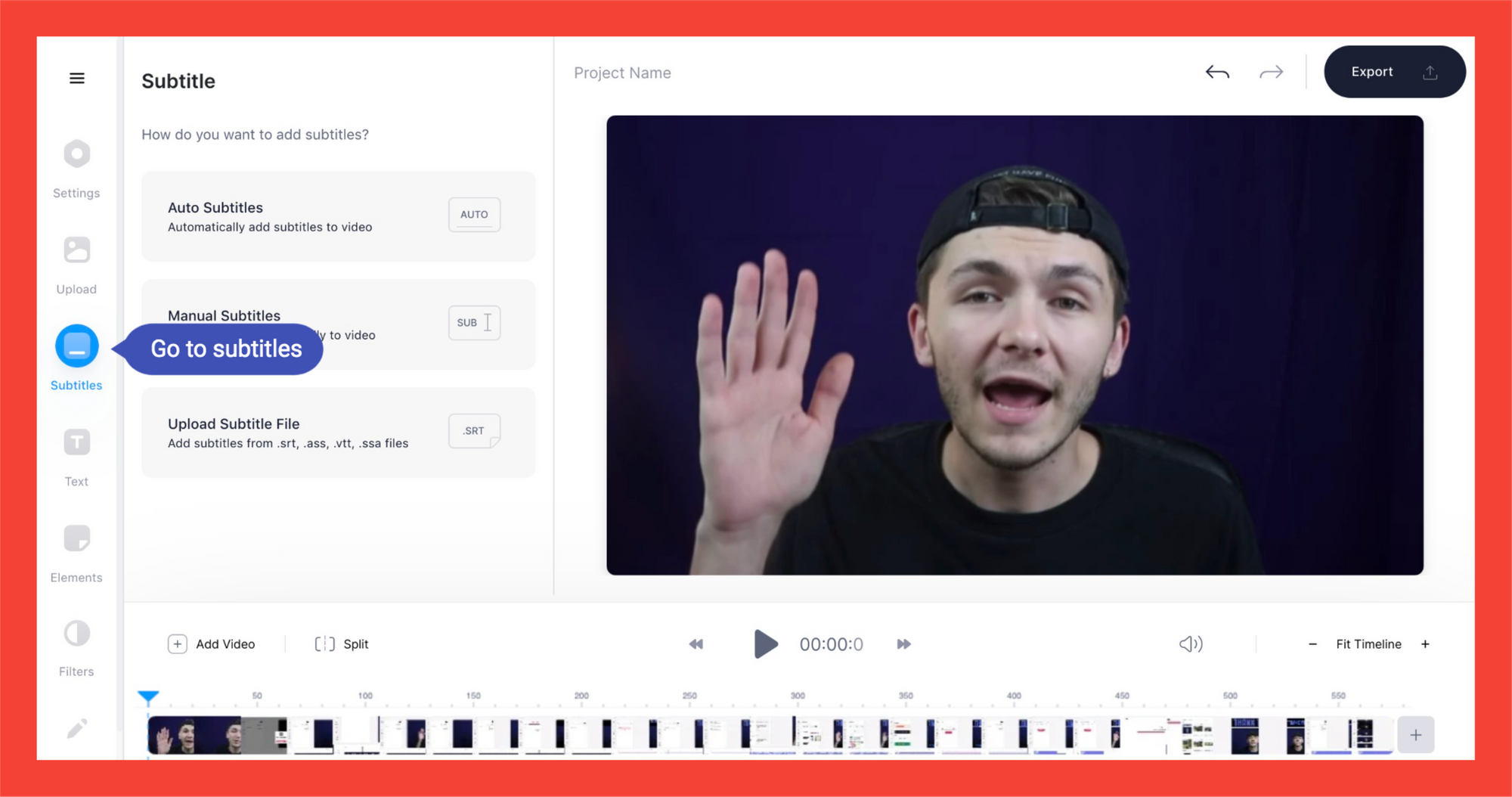
3) Click on Auto Subtitles
VEED will scan your MKV file and either pull the embedded subtitle track directly, or transcribe the audio if no soft-subs are present. This is what makes the browser approach work for both embedded and hardcoded MKV files — if the original track can't be read, the audio gets re-transcribed instead.
4) Pick the right language and accent
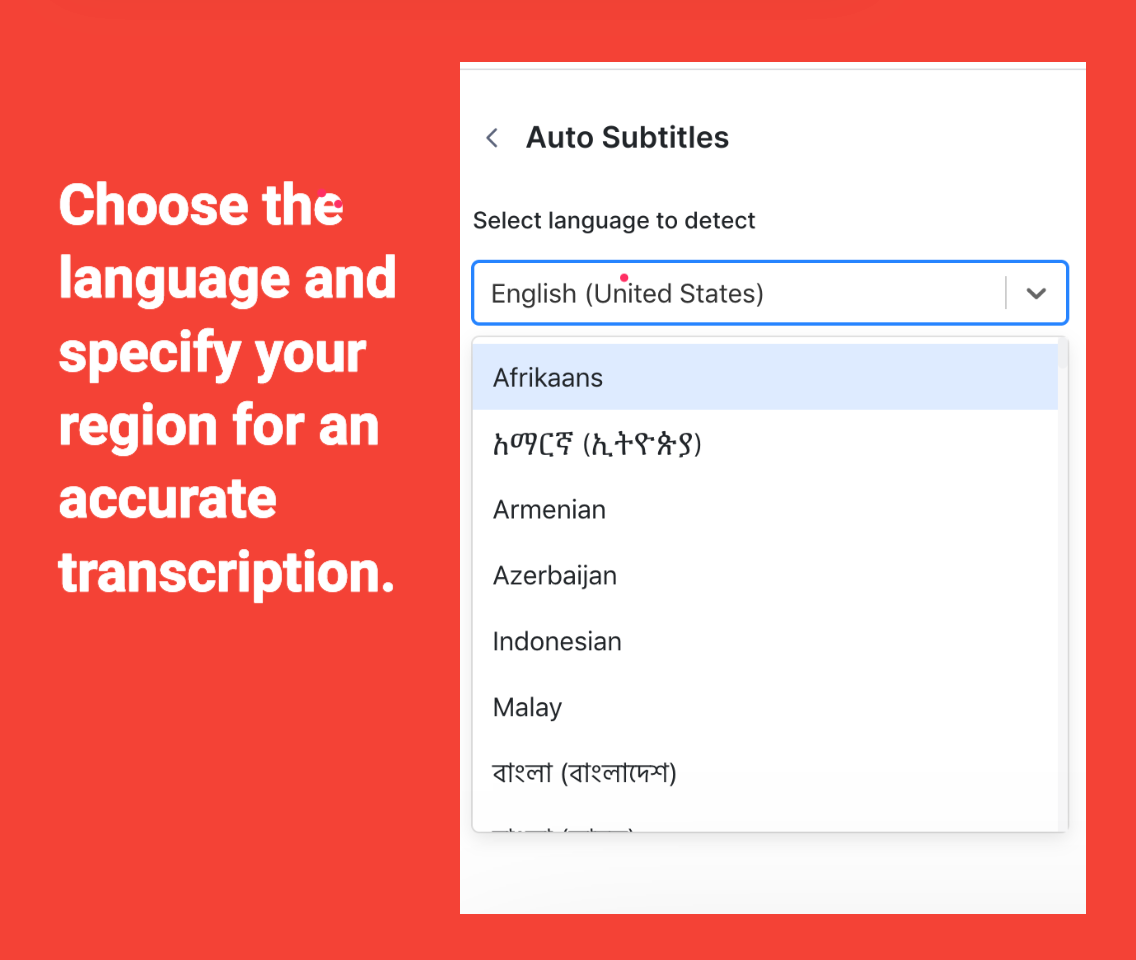
Choose the language and region for the audio. Region matters: US English and Australian English sound different enough that picking the wrong one drops accuracy. VEED supports 125+ languages and most major accent variants.
5) Download as SRT, VTT, or TXT — or export the video

Two options here, depending on what you need next:
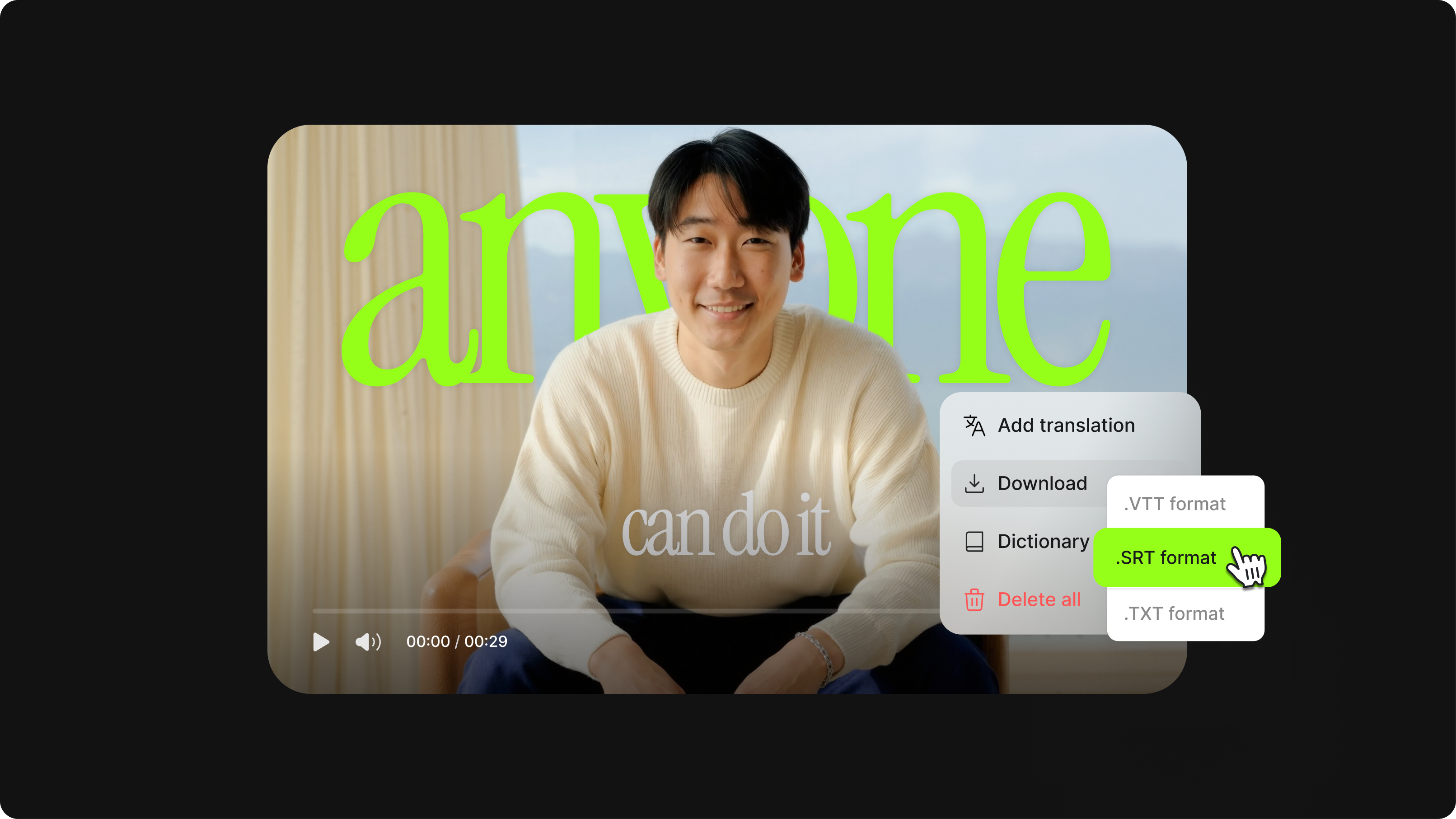
- Open Options → Download Subtitles to grab the subtitle file as .srt, .vtt, or .txt. This is what you want for YouTube, Premiere, Final Cut, or any tool that reads sidecar subtitle files.
- Hit Export to download the video with the subtitles burned in (hardcoded). This is what you want for TikTok, Instagram Reels, and other platforms that don't accept SRT uploads.
Convert MKV subtitles to SRT (or any other format)
SRT is the most universal subtitle format. It works in YouTube, Premiere Pro, Final Cut, DaVinci Resolve, Plex, Jellyfin, and almost every video editor or media player. If your MKV has subtitles in any other format — VTT, ASS, SSA, or embedded as a non-SRT track — converting to SRT is usually the safest move.
In VEED, the conversion happens at the download step. After Auto Subtitle finishes:
- Open Options → Download Subtitles
- Pick .srt, .vtt, or .txt from the dropdown
- Click Download
If you already have a subtitle file in a non-SRT format and just need to convert, the VEED subtitle converter handles SRT, VTT, ASS, SSA, and TXT in any direction without re-extracting.
How to extract hardcoded or PGS subtitles from MKV
This is where most users get stuck. Hardcoded and PGS subs are not text — they're images painted onto frames or stored as picture data. Standard extraction tools can't pull them as editable text.
Hardcoded (burned-in) subtitles
Hardcoded subtitles are part of the video itself. There's no separate track to extract. You have two options:
- Re-transcribe the audio. Upload the MKV to VEED, run Auto Subtitle, and let it generate fresh captions from the spoken dialogue. This is faster and more accurate than OCR for most content.
- Run OCR on the video frames. Tools like SubtitleEdit can scan each frame and try to read the burned-in text, but accuracy drops on stylized fonts, fast cuts, and scene changes.
PGS subtitles (Blu-ray rips)
PGS subs are image-based subtitle streams from Blu-ray sources. They're stored as pictures inside the MKV, with timing data attached. To turn them into editable text:
- Re-transcribe the audio with VEED. This skips OCR entirely and works directly from the spoken dialogue, which is usually cleaner than trying to read PGS images.
- Use a desktop OCR tool. Subtitle Edit or BDSup2Sub can OCR PGS streams into SRT, but the output usually needs heavy editing — especially on fonts the OCR engine doesn't recognize cleanly.
For most workflows, fresh transcription wins. You get clean text with accurate timing, and you can translate it to any language right after.
How to translate MKV subtitles to other languages
Once the subtitles are extracted, you can translate them in the same workflow. This is useful when you have viewers from all over the world watching your videos, especially when there's a large group of them speaking the same foreign language.
VEED’s subtitle editor is powerful and also allows you to translate the subtitles you’ve extracted from your MKV video to different languages.
This is extra useful, when you have viewers from all over the world watching your videos, especially when there’s a large group of them speaking the same foreign language.
1) Go to Subtitle in the left toolbar.
2) Click on Translate
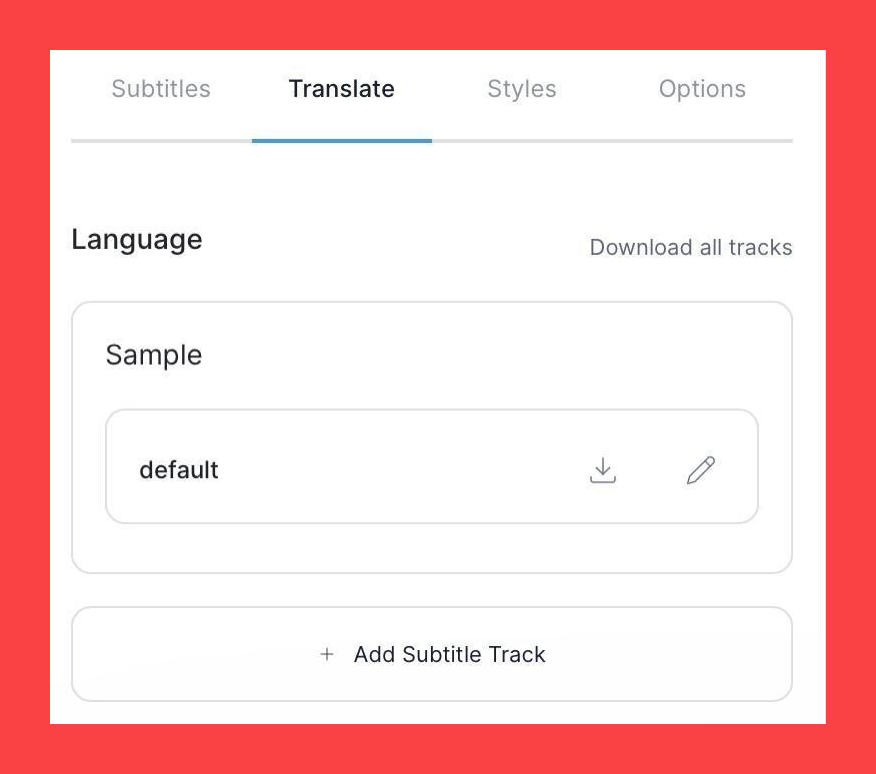
3) Click on Add Subtitle Track
4) Enter the language you want to translate the original content to.
So there are two drop-down fields.
In the left field, choose the language you want to translate the subtitles into.
In the right field, you can either choose to:
- Translate from the original language. For this tutorial, choose this option.
- Translate from a subtitle file.
5) Hit Create
6) Click on Edit to activate that subtitle for your video
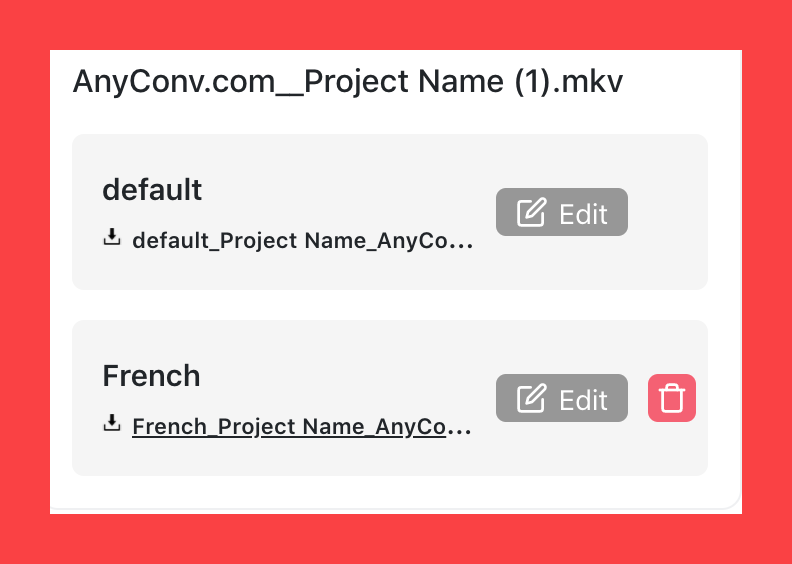
7a) Under Options, download the translated subtitled extracted from MKV
7b) Hit Export to download the video with the chosen (translated) subtitles hardcoded into the MKV video.
Extract MKV subtitles on Mac, Linux, Windows, and Android
Most MKV extraction tutorials assume you're on Windows running MKVToolNix. If you're on a Mac, a Linux distro, or a Chromebook, the desktop options thin out fast. Browser-based extraction sidesteps that problem entirely:
The trade-off: browser uploads are bandwidth-bound. For multi-gigabyte MKV files (full-length movies, long lectures), a desktop tool may finish faster. For most clips under 1 GB, the browser is faster end-to-end because there's no install or learning curve.
Batch extracting subtitles from multiple MKV files
If you're managing a Plex or Jellyfin library and need to pull subtitles out of dozens or hundreds of files, the workflow shifts:
- For pure embedded soft-subs at scale, MKVToolNix's command-line mkvextract is faster than any GUI or browser tool. Pair it with a shell script that loops through your library folder.
- For PGS or hardcoded subs at scale, there's no clean automation path. Each file needs OCR or re-transcription, which means human review on the output.
- For mixed libraries where you also want translations, VEED works best as a per-file step. It's not built for unattended batch processing, but it's the fastest way to handle one-off files where you want both extraction and translation in the same pass.
Tips On Subtitles Extracted From MKV
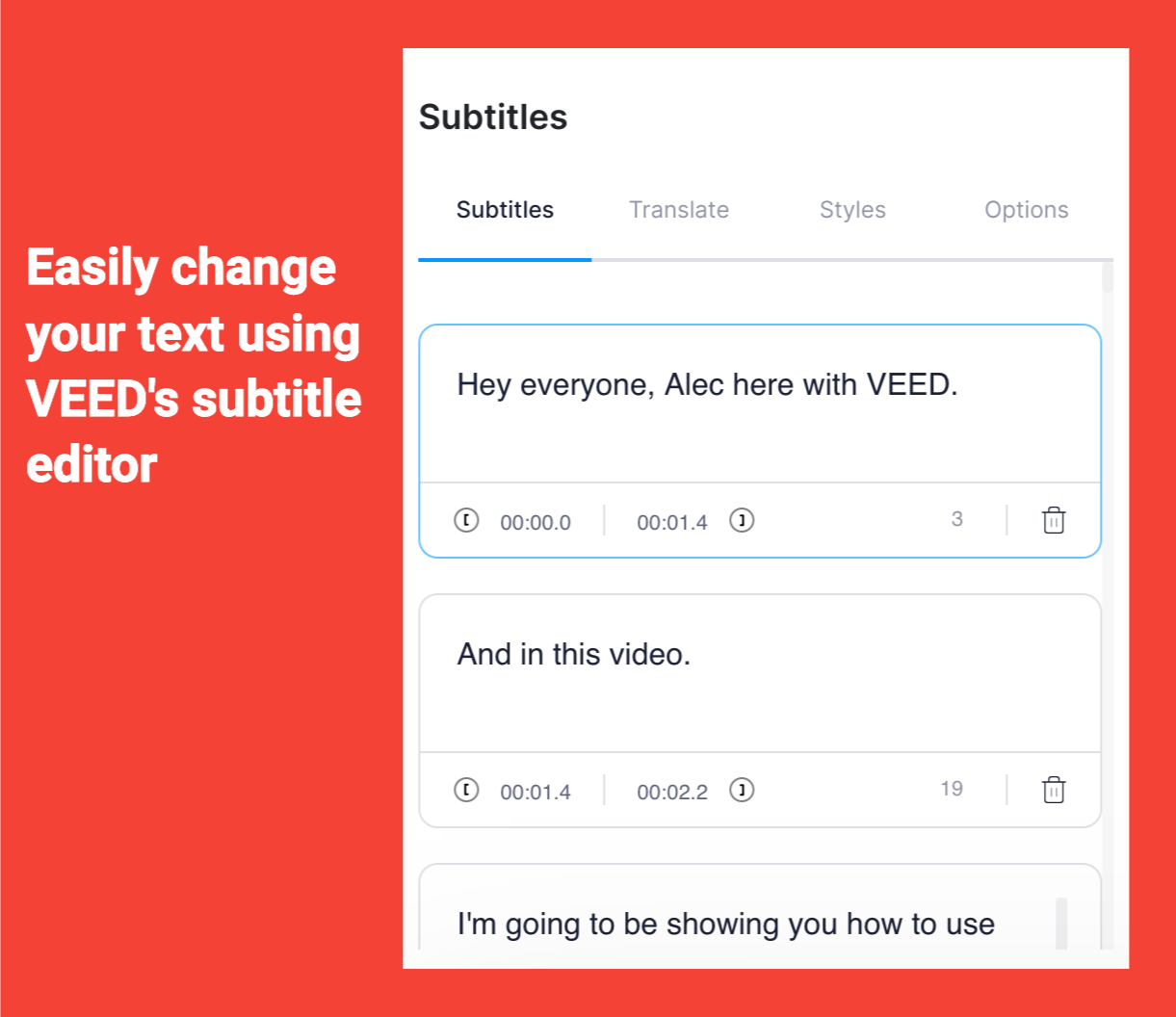
1) You can edit the subtitles in the editor
Automatic transcription can help you save a lot of time and money previously spent on manual transcription services, but it has its limitations.
In particular, if the audio quality is bad or if the words weren’t pronounced clearly, then the automatically extracted subtitles from your MKV videos may not be 100% accurate (it should be mostly accurate).
Of course, you’re going to have to change specific brand names that are hard to properly automatically transcribe.
In this case, just edit some of the subtitles with the editor.
2) Change the styles of your subtitles

Under Styles, you can change the typeface, the font color, font size, letter spacing and line-height to make them appear more visible in the video, or to better fit your visual branding guidelines.
You can also play a bit with the capitalization… although, I suggest keeping the sentence format, because the title case might disrupt the viewing experience if people have to stop and read every capitalized letter.
4) Upload your subtitles separately on YouTube, Facebook and LinkedIn to boost reach and engagement
According to recent research, YouTube analyzes your video content by reading the subtitles uploaded as .srt or .vtt files to the platforms.
Helping your video content rank faster and better, this allows you to get regular organic search traffic and therefore get more viewers.
In other words, just merely uploading subtitles for your YouTube video can help you get more viewers! And if the same principle applies to LinkedIn’s and Facebook’s algorithms, you should also upload the subtitles in your videos as separate files!
And, of course, adding subtitles makes your video more accessible to those who are hard of hearing or just like watching videos on mute. Therefore, you’d be reaching more viewers!
5) Translate your subtitles in different languages
Translating your subtitles extracted from mkv in different languages is a great way to attract more viewers internationally.
Moreover, if you have many viewers that speak the same foreign language, then adding their language as a subtitle option is a nice way to show your gratitude for having them as an audience.
6) Download as .txt for note-taking
Finally, if you want to automatically extract subtitles from your MKV for research purposes, downloading them as .txt files for taking notes might be a good option.
Once downloaded, you just need to open the file with a text editor and classify the notes in whatever way you want.
This is good for researchers that need quotes from a certain video (or just want to get study notes from a topic in a video) and interviewers wanting to convert the video content into an article.
Extract subtitles, then keep going
Most MKV extraction tools stop at the SRT file. VEED keeps going.
Once your subtitles are out of the MKV, you can translate them, restyle them, burn them into a re-cut version of the video, or add audio and music tracks — all in the same workflow. VEED is the AI video creation platform built to grow your brand on social, so the same tool that pulls captions out of an MKV can also turn that footage into post-ready video.
That includes screen recordings, AI voice dubbing, video translation, dynamic word-by-word captions for short-form video, and resizing for any social platform.
Pull subtitles from MKV in your browser
Here's what to remember:
- Soft-subs extract instantly. Upload the MKV, click Auto Subtitle, download as SRT or TXT.
- Hardcoded and PGS subs need re-transcription. VEED's audio-based transcription is usually cleaner than OCR.
- Browser-based works everywhere. Mac, Linux, Windows, ChromeOS, Android — no install needed.
- Convert and translate in one pass. SRT, VTT, TXT, ASS, SSA — and 125+ languages.