


Trusted by 1M+ creators
Video Splitter
Split your video into multiple clips and cut out unwanted parts. Use Magic Cut to feature your best clips!
No credit card required

4.6
2,100+ reviews














Split video into parts: Create clips, highlights, and more!
VEED's video splitter lets you cut, trim, and rearrange clips directly in your browser — no software to download. Split a video into as many parts as needed, delete what you don't want, and export the result as a single file. Or use Magic Cut to let AI identify and highlight the best scenes automatically.
How to split a video:
Step 01
Upload, record, or start with a template
Upload your video to VEED or start recording using our screen and webcam recorder. You can also start with our highly customizable templates.
Step 02
Split your video or use Magic Cut
Click on where you want to split your video or move the slider across the timeline. Press the ‘S’ key on your keyboard or click the ‘Split’ button. Delete the clips you don’t want. Or toggle the Magic Cut button to let AI do all the work for you!
Step 03
Export or keep creating!
Export your video and share. Or keep exploring our full range of video editing tools to make your video look as professional as possible!
Learn More
Watch this walkthrough of our video splitter tool:

Split, cut, trim, and rearrange your video clips
Upload your video and split it into as many parts as needed. Trim any clip by dragging the edge on the timeline, then rearrange clips in any order. When you're done, export everything as one video file.

A full range of video editing tools to explore!
Beyond splitting and trimming, VEED's editor includes filters, color grading, effects, text, images, subtitles, and a video joiner tool for combining clips. Crop and resize your video for different platforms. Rotate to different angles. Everything runs in the browser.
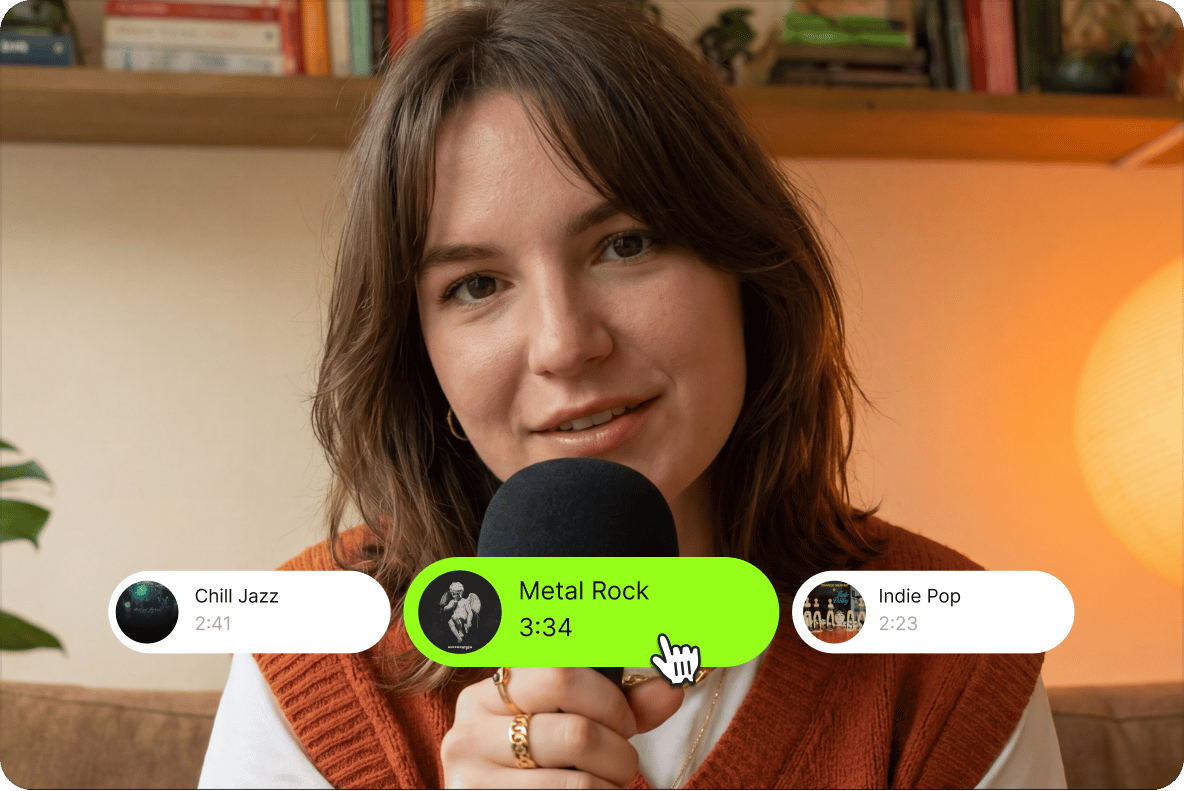
Add music, sound waves, and voiceovers to your podcasts
Add royalty-free stock music or sound effects from VEED's library, or record a voiceover using AI text-to-speech. Animated sound waves give audio-driven content like video podcasts and short reels a more polished look for social media.
FAQ
You can split your video into several parts in a few simple steps using VEED. Simply upload your video to VEED and move the indicator or slider across the timeline. Click on the ‘Split’ button right above the editing pane or press the ‘S’ key on your keyboard. You can do this process as many times as needed. Delete the parts you don’t want by right-clicking on any video clip and clicking on ‘Delete.’ Or use Magic Cut to let AI do it automatically!
There are many video editing apps that let you split your videos. However, a lot of them are paid or require huge storage space for them to be installed on your device. VEED is free and browser-based. Split and edit your videos from any desktop or mobile browser. No installation required!
VEED’s video splitter tool works with all popular video formats including MP4, MOV, MKV, AVI, and more.
VEED works on iPhone, Android, and all mobile devices. You can access our video splitter tool from any mobile browser including Safari, Chrome, Firefox, and more. It also works flawlessly with Windows, Mac, and Linux computers.
Absolutely, yes! Our video editor also lets you create and edit animated GIF files. Use the same splitter tools to split your GIFs into several parts. You can even create GIFs from different videos.
You can trim any video to any duration you want. All it takes is a click and a drag and drop action. Select the video clip you want to cut or trim on the timeline and drag the edge to the left to make it shorter.
Loved by creators.
Loved by the Fortune 500
“
With VEED I didn't need 15 tutorials - I jumped straight in and started editing.

Gwenne Wilcox
Founder,
Brand Brainery
“
You can go beyond choppping things. VEED actually makes my videos look great.

Michael Glover
Demand Gen Manager,
ConvertFlow
“
The first four videos i created with VEED got over 40,000 impressions on LinkedIn.

Travis Tyler
Senior Content Producer,
PandaDoc
“
I found VEED at the right time: if you're making UGC ads and not using Eye Contact Correction and Noise Reduction on VEED you're missing out on ROI.

Sebastian Schurgers
Head of Growth Marketing,
Gronda
“
With VEED I didn't need 15 tutorials - I jumped straight in and started editing.
Gwenne Wilcox
Founder,
Brand Brainery
“
You can go beyond choppping things. VEED actually makes my videos look great.
Michael Glover
Demand Gen Manager,
ConvertFlow
“
The first four videos i created with VEED got over 40,000 impressions on LinkedIn.
Travis Tyler
Senior Content Producer,
PandaDoc
“
I found VEED at the right time: if you're making UGC ads and not using Eye Contact Correction and Noise Reduction on VEED you're missing out on ROI.
Sebastian Schurgers
Head of Growth Marketing,
Gronda
“
The first four videos i created with VEED got over 40,000 impressions on LinkedIn.
Travis Tyler
Senior Content Producer,
PandaDoc
“
I found VEED at the right time: if you're making UGC ads and not using Eye Contact Correction and Noise Reduction on VEED you're missing out on ROI.
Sebastian Schurgers
Head of Growth Marketing,
Gronda
“
With VEED I didn't need 15 tutorials - I jumped straight in and started editing.
Gwenne Wilcox
Founder,
Brand Brainery
“
You can go beyond choppping things. VEED actually makes my videos look great.
Michael Glover
Demand Gen Manager,
ConvertFlow
Discover more
Explore related tools
More from VEED

How to Crop a Video (Free and Paid Easy-to-Use Methods)
The easiest way to crop videos (free & paid ways) whether on Windows 10 with VLC or online with VEED. Here's how!
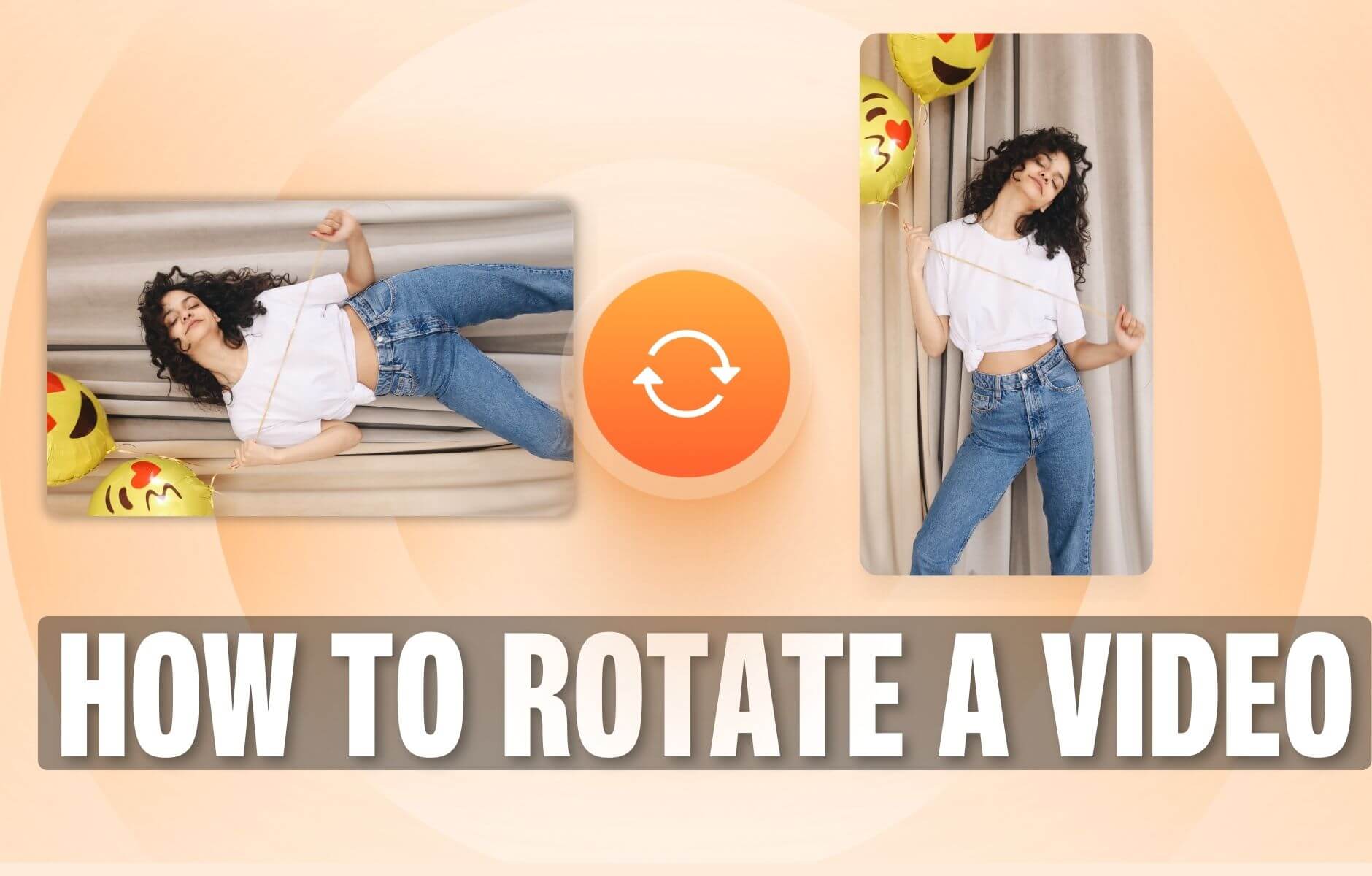
How to Rotate a Video (6 Quick & Easy Ways)
How to easily rotate a video whether you're on your desktop, mobile, or on your web browser.

11 Easy Ways to Add Music to Video [Step-By-Step Guide] in 2026
Not sure where to find music for video whether free or paid? Want to learn how to find it, pick the right song, and then add it to your video content? Then dig in!
Trusted by 1M+ creators
When it comes to amazing videos, all you need is VEED
No credit card required
More than a video splitter
Splitting and trimming is one part of building a finished video. VEED is an AI video creation platform where you can generate, shape, and export videos for TikTok, Instagram, YouTube, and LinkedIn. Once your clips are cut, bring them into Gen-AI Studio to add voiceovers, captions, and brand assets — or keep editing with the full suite of tools in the same workspace. Start creating with VEED today.