


Trusted by 1M+ creators
Ken Burns Effect
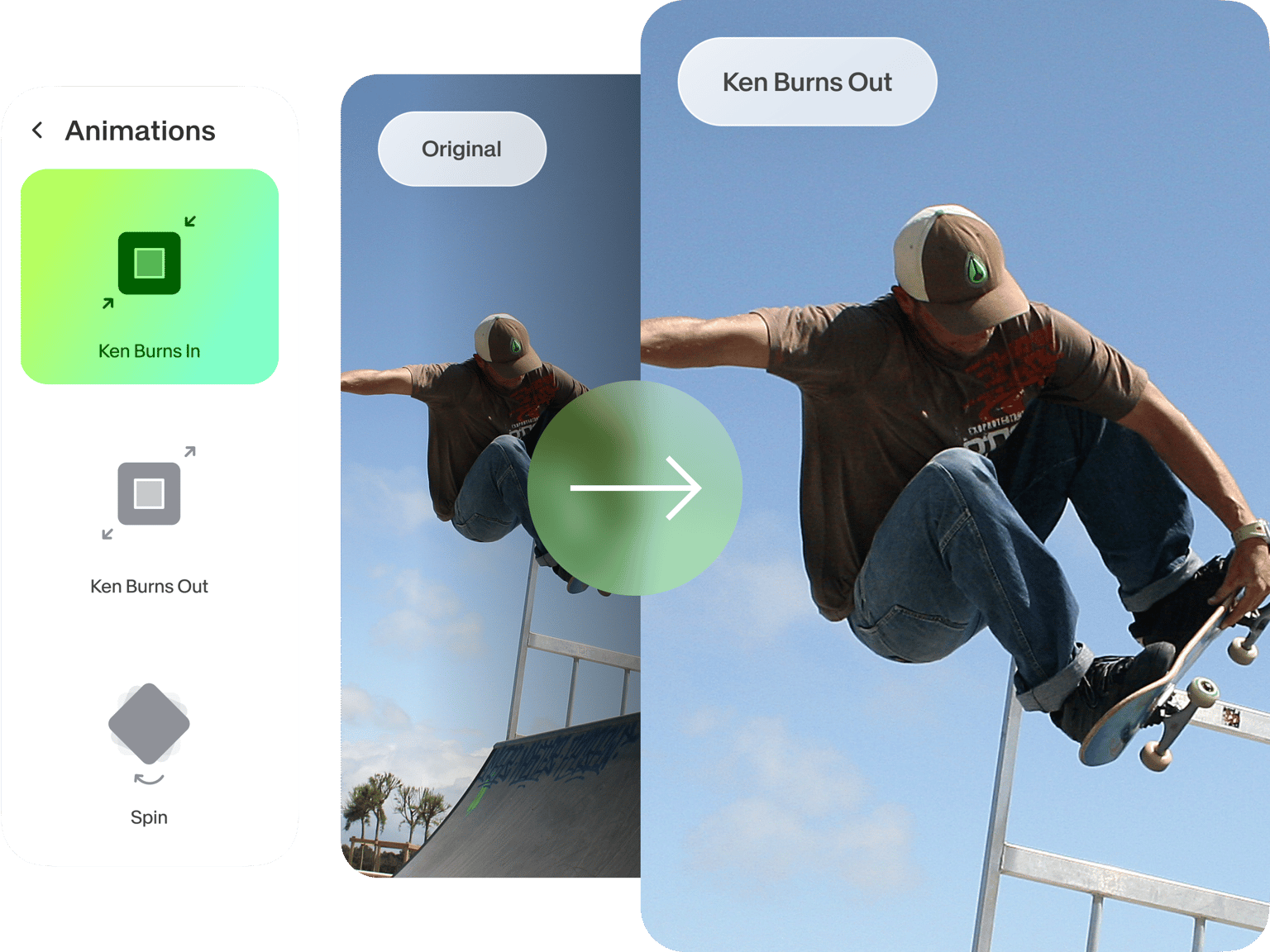
Add a Ken Burns effect to your images and create beautiful videos. Make your still photos pan and zoom on the screen.
No credit card required
4.6
2,100+ reviews














Add a Ken Burns zoom and pan effect to your still images
Make your still images pan and zoom on the screen by adding a Ken Burns effect. Create beautiful videos from photos and use them for your presentations and marketing videos. Our online professional video editing software gives you access to plenty of film effects that you can use to make your videos look stunning. It’s the best alternative to tools with a high learning curve like Adobe Premiere Pro and Final Cut Pro. With VEED, you can create multiple videos fast, allowing you to streamline your content creation process. It’s built for creative collaboration, too! So your team can focus on content instead of configuring complicated video settings.
How to use the Ken Burns effect:
Step 01
Start with still images
Upload your images on VEED or if you have a video and want to add your images, just click on the Media button from the menu and add your photos.
Step 02
Add a Ken Burns effect
Click on a photo on the canvas and select Ken Burns from the Animation menu. You can choose to pan or zoom in or out.
Step 03
Maximize our video editing tools!
You can add more elements and add animation effects to them as well. Apart from images, you can animate text, subtitles, and more! Use our camera effects and filters, add music visualizers, and even add your logo.
Learn More
‘Ken Burns Effect’ Tutorial
Use the Ken Burns effect and other video effects on GIFs and photos
VEED’s Ken Burns effect app can also be used on GIFs. Using GIFs is a great strategy when creating promotional videos for your social media pages. They are relatable, fun, and encourage engagement. You can also use VEED to use other video effects. Blur or pixelate your videos. Apply fisher, color grading, and more! Just click on Filters and choose an effect for your video.
The best tool for creating video content for social media marketing
Our video editing software offers pro tools to make content creation fast and efficient for your marketing team. You can optimize your content for different social media platforms by selecting a preset from the settings. Repurpose your content and even save videos as templates (available to premium subscribers).
Add royalty-free stock music and videos or start with a template
To get started fast, you can also create videos using our video templates. We have templates for marketing, promotions, and business presentations. Just select a template and personalize it by replacing images, text, and more. You can also select from our wide library of stock audio and videos. Our premium subscribers get access to our full stock library.
FAQ
You can select any image you’ve added to your video and select Ken Burns from the Animation setting. Choose whether you want to pan or zoom in or out.
The Ken Burns effect creates the illusion of movement in still photos. It makes the image pan or zoom on the screen.
This video effect was popularized by the documentary filmmaker, Ken Burns. He created this particular style of panning and zooming for still images for his films.
Yes! Just click on Draw from the left menu and start drawing with your mouse. If you are using a tablet, you can draw on the screen.
Loved by creators.
Loved by the Fortune 500
“
With VEED I didn't need 15 tutorials - I jumped straight in and started editing.

Gwenne Wilcox
Founder,
Brand Brainery
“
You can go beyond choppping things. VEED actually makes my videos look great.

Michael Glover
Demand Gen Manager,
ConvertFlow
“
The first four videos i created with VEED got over 40,000 impressions on LinkedIn.

Travis Tyler
Senior Content Producer,
PandaDoc
“
I found VEED at the right time: if you're making UGC ads and not using Eye Contact Correction and Noise Reduction on VEED you're missing out on ROI.

Sebastian Schurgers
Head of Growth Marketing,
Gronda
“
With VEED I didn't need 15 tutorials - I jumped straight in and started editing.
Gwenne Wilcox
Founder,
Brand Brainery
“
You can go beyond choppping things. VEED actually makes my videos look great.
Michael Glover
Demand Gen Manager,
ConvertFlow
“
The first four videos i created with VEED got over 40,000 impressions on LinkedIn.
Travis Tyler
Senior Content Producer,
PandaDoc
“
I found VEED at the right time: if you're making UGC ads and not using Eye Contact Correction and Noise Reduction on VEED you're missing out on ROI.
Sebastian Schurgers
Head of Growth Marketing,
Gronda
“
The first four videos i created with VEED got over 40,000 impressions on LinkedIn.
Travis Tyler
Senior Content Producer,
PandaDoc
“
I found VEED at the right time: if you're making UGC ads and not using Eye Contact Correction and Noise Reduction on VEED you're missing out on ROI.
Sebastian Schurgers
Head of Growth Marketing,
Gronda
“
With VEED I didn't need 15 tutorials - I jumped straight in and started editing.
Gwenne Wilcox
Founder,
Brand Brainery
“
You can go beyond choppping things. VEED actually makes my videos look great.
Michael Glover
Demand Gen Manager,
ConvertFlow
Discover more
Trusted by 1M+ creators
When it comes to amazing videos, all you need is VEED
No credit card required
More than adding a Ken Burns effect
Apart from adding a Ken Burns effect to your images, you can use VEED to manipulate your video to achieve any look you want. VEED is packed with video editing tools including camera filters and effects. You can use our video editor to rotate, resize, and crop your videos to fit any social media platform. Make your videos compatible with Instagram, Facebook, and other social platforms. Try VEED now and start putting your amazing story ideas on videos worth sharing with the world!