


Trusted by 1M+ creators
Audio Waveform Generator
Add animated waveforms to your videos. Generate customized sound wave art with a few clicks!
No credit card required

4.6
2,100+ reviews














Catch Your Viewer’s Attention by Adding Sound Wave Animation Online
Elevate your videos by incorporating audiograms, which visualize speech and sounds using waveforms to encourage viewers to unmute. By making your videos more dynamic and captivating, they will stand out in the feed and capture viewers' attention. Moreover, the chances of a video being watched to completion increase by 23% when it has animations. With VEED’s audio waveform generator, you can add stunning sound waves to your videos in just one click. Choose from the different themes and styles, and watch the sound wave become animated based on the sound frequency. Our video editing software will detect the original audio of your video or you can add an audio file. Share awesome music videos on TikTok, Instagram, Facebook, and other social media platforms.
How to Add an Audio Waveform to a Video:
Step 01
Pick a Template or Upload Video
Upload a video to VEED. Start by clicking on ‘Choose Video’. Select your video file or drag and drop it into the editor. You can alternatively choose a template from VEED’s template library and add your audio to it.
Step 02
Generate Waveform and Animate
You can automatically generate a waveform by clicking on ‘Elements’ on the left menu. Select a waveform style under Add Sound Wave. Customize it if you wish. The waveform will animate as per the sound or audio.
Step 03
Customize with Subtitles, Images and Text
Once you’ve added the audio waveform online, you can also add text to the video, images and GIFs. You can enhance the reach further by adding captions and subtitles. You can now download your video by clicking on ‘Export’.
Learn More
Here’s a Walkthrough on How to Use the Audio Waveform Generator:
Make Videos Engaging with Free Online Waveform Generator
Adding animated waveforms to your videos is completely free on VEED! You have the option to create an account, which will allow you to save your projects in one place but it is not required. You can add as many sound waves as you want. All you have to do is upload your video, click on Elements, and choose a sound wave. Easy!
Customize Your Sound Wave
Be creative and do all sorts of customization to your sound wave. You can place it anywhere on the video frame—on the corners, in the middle, or anywhere you want! You can drag and drop it to change its size. Place it horizontally or vertically, select from different colors and shapes. The possibilities are endless!
Edit the Video to Increase Reach and Engagement
VEED is packed with all the tools you will ever need in a video editor. Not only can you add audio waveforms to your videos but you can also edit them. Rotate, crop, and resize your video to fit any social media platform. You can also add text, images, audio, and more. There are so many fun elements you can add, and even apply filters and effects!
FAQ
- Click on ‘Choose Video’ and select a video to upload. 2. Go to ‘Elements’ and select a waveform style from the Sound Wave templates 3. Export and share!
VEED also lets you upload audio files and generate soundwaves from them. Just click on Upload or click on the plus (+) sign on the bottom-right of the editor.
Generating animated sound waves is completely free on VEED! You can choose from different templates and styles, customize the shape, size, and color of your sound wave, and locate it anywhere on the video frame.
Yes, you can! If you only want the waveform to appear in some parts of the video, all you have to do is split the video into parts and add the sound wave only to specific clips. To split a video, just drag and drop the play head to your preferred location, and click on the ‘Split’ tool right above the timeline.
Loved by creators.
Loved by the Fortune 500
“
With VEED I didn't need 15 tutorials - I jumped straight in and started editing.

Gwenne Wilcox
Founder,
Brand Brainery
“
You can go beyond choppping things. VEED actually makes my videos look great.

Michael Glover
Demand Gen Manager,
ConvertFlow
“
The first four videos i created with VEED got over 40,000 impressions on LinkedIn.

Travis Tyler
Senior Content Producer,
PandaDoc
“
I found VEED at the right time: if you're making UGC ads and not using Eye Contact Correction and Noise Reduction on VEED you're missing out on ROI.

Sebastian Schurgers
Head of Growth Marketing,
Gronda
“
With VEED I didn't need 15 tutorials - I jumped straight in and started editing.
Gwenne Wilcox
Founder,
Brand Brainery
“
You can go beyond choppping things. VEED actually makes my videos look great.
Michael Glover
Demand Gen Manager,
ConvertFlow
“
The first four videos i created with VEED got over 40,000 impressions on LinkedIn.
Travis Tyler
Senior Content Producer,
PandaDoc
“
I found VEED at the right time: if you're making UGC ads and not using Eye Contact Correction and Noise Reduction on VEED you're missing out on ROI.
Sebastian Schurgers
Head of Growth Marketing,
Gronda
“
The first four videos i created with VEED got over 40,000 impressions on LinkedIn.
Travis Tyler
Senior Content Producer,
PandaDoc
“
I found VEED at the right time: if you're making UGC ads and not using Eye Contact Correction and Noise Reduction on VEED you're missing out on ROI.
Sebastian Schurgers
Head of Growth Marketing,
Gronda
“
With VEED I didn't need 15 tutorials - I jumped straight in and started editing.
Gwenne Wilcox
Founder,
Brand Brainery
“
You can go beyond choppping things. VEED actually makes my videos look great.
Michael Glover
Demand Gen Manager,
ConvertFlow
Discover more
More from VEED
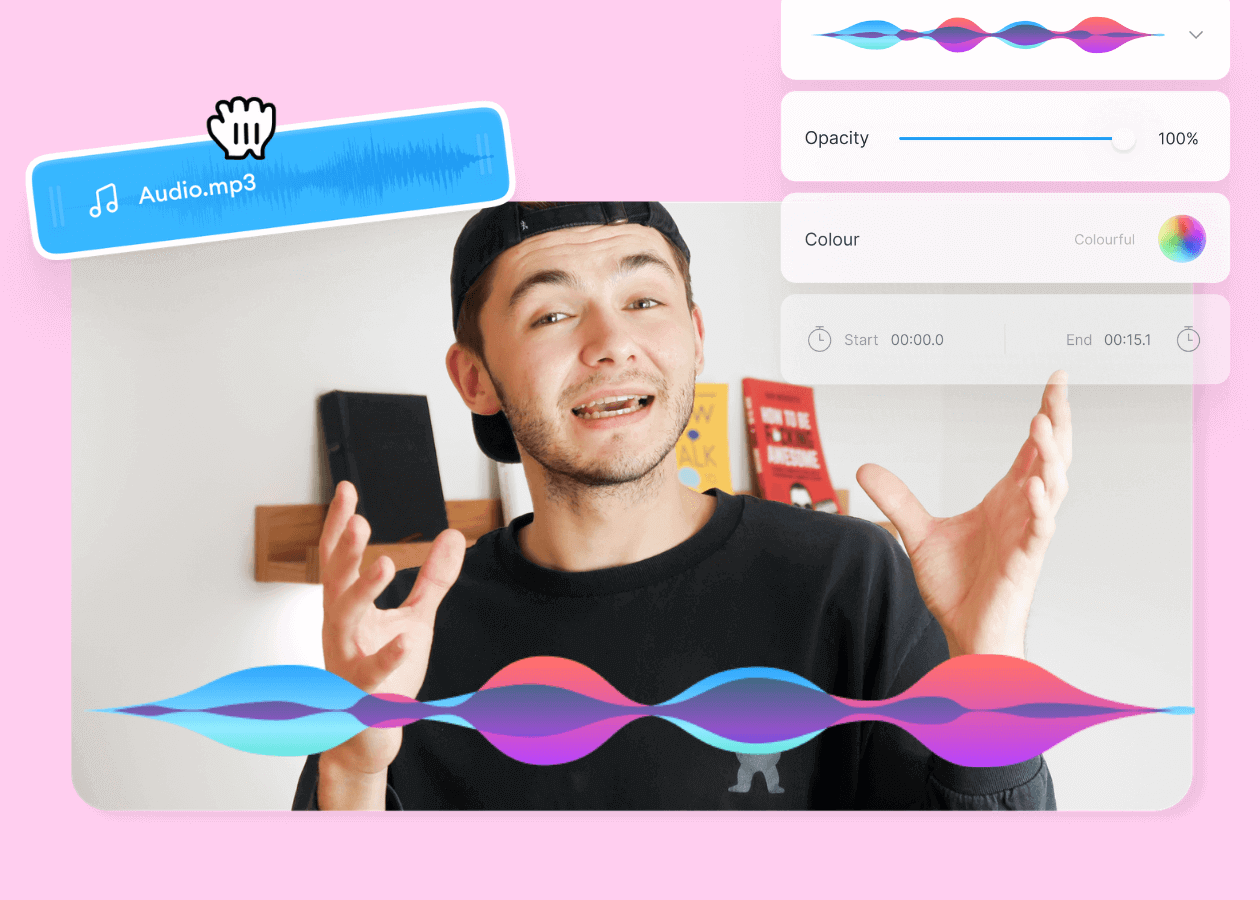
Top 5 Best Music Visualizers [Free and Paid]
Here are some of the best music visualizers available on the internet and how to use them!

11 Easy Ways to Add Music to Video [Step-By-Step Guide] in 2026
Not sure where to find music for video whether free or paid? Want to learn how to find it, pick the right song, and then add it to your video content? Then dig in!
7 Easy Ways to Remove Audio From Video (Step-By-Step Tutorials)
Need to remove annoying background audio? Here are 7 easy ways to mute your video whether you're on your phone or on computer.
Trusted by 1M+ creators
When it comes to amazing videos, all you need is VEED
No credit card required
More Than an Audio Waveform Generator
What’s great about VEED is that it gives you absolute freedom to be creative in editing your videos. Create professional-looking videos that you can share on Facebook, Instagram, TikTok, and other social media sites. You don’t need to have experience in video editing. Most of our features allow a drag-and-drop action. Add images, text, and other elements in just one click. It’s free and it works straight from your browser!