


Trusted by 1M+ creators
Outro Maker
Create amazing outros for your videos, free. Online outro maker
No credit card required

4.6
2,100+ reviews














Create Outros for Your Videos Online
Create the perfect ending for your videos by adding outros. You can add credits to let people know who were involved in the video creation, add background music, sound effects, and more. If you did not film an outro, you can choose from our available stock videos. You can personalize our stock videos to make your outros compelling. Leave your audience in awe of your video creations!
How to Create a Video Outro:

Step 01
Add your video
Click on ‘Choose Video’ and select your video from your folders.

Step 02
Create your outro
Some of the things you can add at the end of your video are texts, images, and background music. Just click on the Text button on the left.

Step 03
Export
When you’re happy with your video outro, just click on ‘Export’. Download your video in the format that you prefer.
Learn More
‘Outro Maker’ Tutorial

Create the perfect ending for your videos
So, you’ve created an awesome video and are ready to share it. But don’t stop there! You can make it even better by adding an outro that will make your audience remember your video long after they’ve watched it. Leave a great impression by adding an end scene that will make them click on the replay button and watch it over and over. You can add end credits, add your logo, an image, and sound effects. Share your creations on YouTube, Instagram, Facebook, TikTok, and other video sharing and social media platforms. You will be sure to get your fans excited in watching more of your videos!

Easy-to-use video editor
VEED’s free video editor is super easy to use. To create an outro, all you have to do is add your outro elements and drag them toward the end of the timeline. You will see different layers on the timeline and you can click on each element to edit it individually. To add text, for example, just click on the Text tool from the menu and start typing. The same is true for photos, sound effects, background music, and more. You can even add video effects on your end scene. Split your video to edit only the outro. Just click on the Split tool, click on the last clip, and customize! All it takes is just a few clicks.
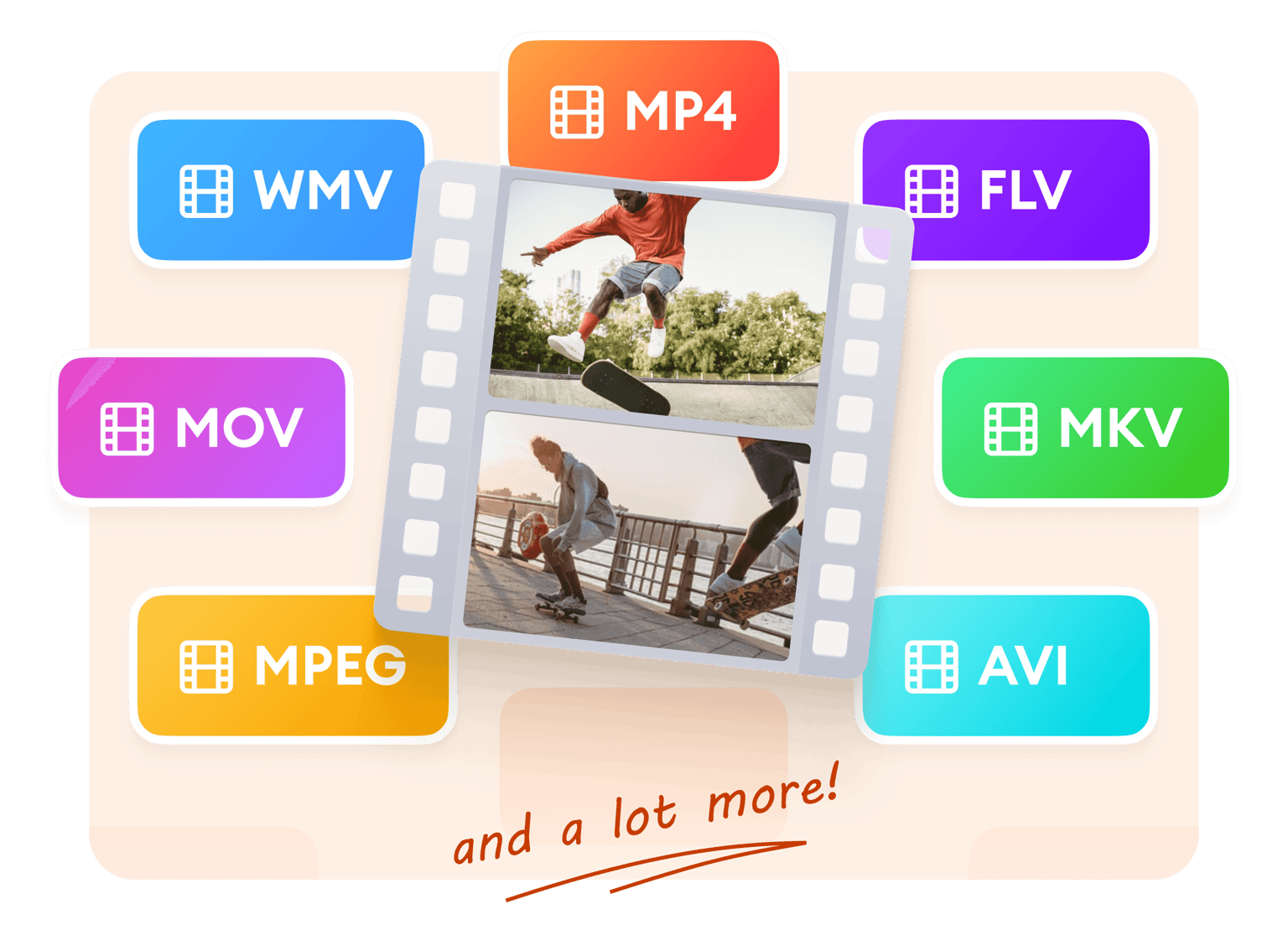
Select from multiple formats
VEED allows you to download your videos in your desired video format. This way, your video will be more compatible with different video-sharing platforms and social media sites. It will also be playable in different media players like VLC, QuickTime, and more. You can choose from MP4, AVI, MOV, and other popular video file types. Even if you’ve uploaded a video in a different format, you can choose another format when you download your video. Just select your desire format before exporting. It is really that simple!
FAQ
VEED lets you easily add outros to your videos. Add text, images, and background music at the end of your video. Just click on the element you want to add and drag and drop it toward the end of the timeline. You can also split the video and add other effects and elements in between.
While there are so many video editing apps out there, VEED stands out because of its simple interface and powerful video editing tools. You can use them for free so you can create outros for unlimited videos without even creating an account!
As mentioned, VEED is completely free to use, and it is incredibly easy to use for YouTube videos. Just upload your content, make edits, and resize for YouTube with one click!
Some ideas to make cool outro videos: include a recap of what you’ve presented in your video, add credits to recognize the people involved in the video creation, thank your audience for watching, and so much more!
An outro is a brief, distinct closing toward the end of your video. It is usually added to create a lasting impression on the people who watched your video.
If you’re creating an outro for a podcast video, it should be short, clear, and concise. Make sure that it is easy to follow, and that it effectively concludes what you’ve discussed in your podcast.
Loved by creators.
Loved by the Fortune 500
“
With VEED I didn't need 15 tutorials - I jumped straight in and started editing.

Gwenne Wilcox
Founder,
Brand Brainery
“
You can go beyond choppping things. VEED actually makes my videos look great.

Michael Glover
Demand Gen Manager,
ConvertFlow
“
The first four videos i created with VEED got over 40,000 impressions on LinkedIn.

Travis Tyler
Senior Content Producer,
PandaDoc
“
I found VEED at the right time: if you're making UGC ads and not using Eye Contact Correction and Noise Reduction on VEED you're missing out on ROI.

Sebastian Schurgers
Head of Growth Marketing,
Gronda
“
With VEED I didn't need 15 tutorials - I jumped straight in and started editing.
Gwenne Wilcox
Founder,
Brand Brainery
“
You can go beyond choppping things. VEED actually makes my videos look great.
Michael Glover
Demand Gen Manager,
ConvertFlow
“
The first four videos i created with VEED got over 40,000 impressions on LinkedIn.
Travis Tyler
Senior Content Producer,
PandaDoc
“
I found VEED at the right time: if you're making UGC ads and not using Eye Contact Correction and Noise Reduction on VEED you're missing out on ROI.
Sebastian Schurgers
Head of Growth Marketing,
Gronda
“
The first four videos i created with VEED got over 40,000 impressions on LinkedIn.
Travis Tyler
Senior Content Producer,
PandaDoc
“
I found VEED at the right time: if you're making UGC ads and not using Eye Contact Correction and Noise Reduction on VEED you're missing out on ROI.
Sebastian Schurgers
Head of Growth Marketing,
Gronda
“
With VEED I didn't need 15 tutorials - I jumped straight in and started editing.
Gwenne Wilcox
Founder,
Brand Brainery
“
You can go beyond choppping things. VEED actually makes my videos look great.
Michael Glover
Demand Gen Manager,
ConvertFlow
Discover more
Trusted by 1M+ creators
When it comes to amazing videos, all you need is VEED
No credit card required
More than an outro maker
Whatever your video editing needs are, VEED has got it—in a free, easy-to-use, and incredibly powerful video editor! Do you need an intro and an outro for your videos? Easy; use VEED! You can add logos, text, and even subtitles to leave a lasting impression on your viewers. More than that, you can edit your entire video to personalize it and make it look professional. You don’t need any video editing experience. Plus, VEED is online software so you don’t need to download an app. Do it all for free, straight from your browser!